
...
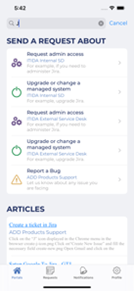
- In request type screen press on What do you need help with?
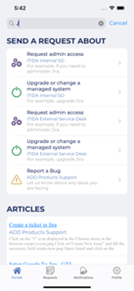
- Below screen will appear so you can search for confluence articles and Request Types
...
4- Request type screen
...
Suppose you received a notification, then when you press on it details screen will open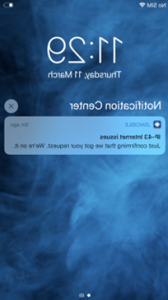
...
7- Request List Screen
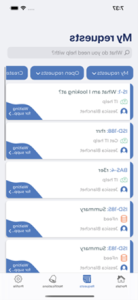
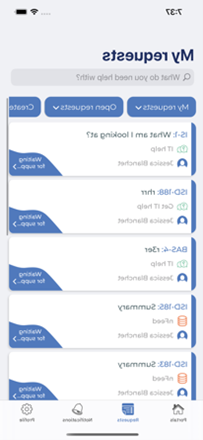
7.1 Filters and search
...
- In order to filter Requests check below filters
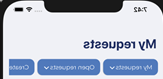
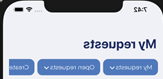
- Choose any filter and the list will update accordantly
...
- Swipe the list to the left to view some actions
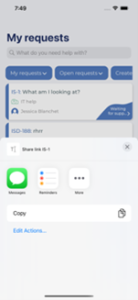
7.3 Share Link Action
- Press on Share Link
- Below share action will appear to give ability to share your Request link with other Apps
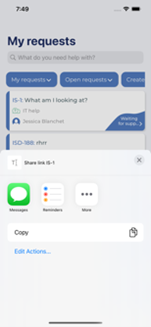
7.4 More Action
- Press on More
- Below action could appear if exists
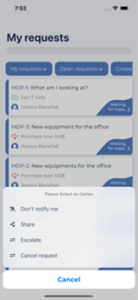
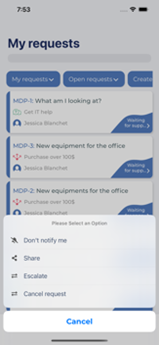
- First option allows you to enable or disable getting notifications on specific ticket
- Second option allow to share your issue with users in your organization
- Last option are Transition options
...
- From Request list view
- Press on the section pointed in below image
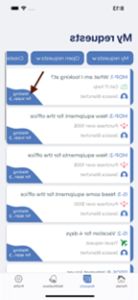
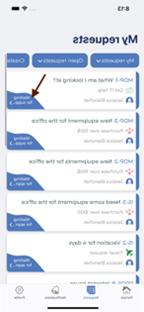
- Transition list will appear
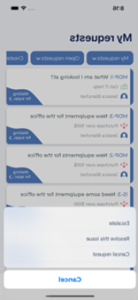
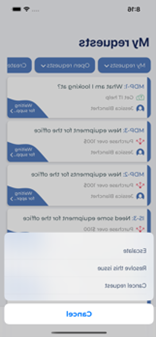
8.2 From Request list, on swipe (More action)
- Swipe the view to the left
- Press on More
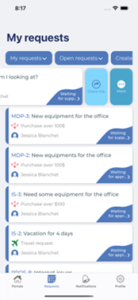
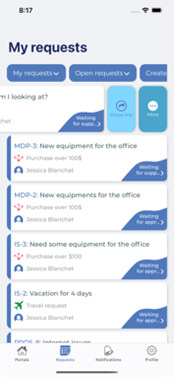
- Transition list with some actions should appear
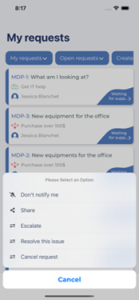
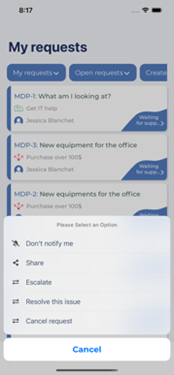
8.3 From Details Screen
- From the vertical ellipse at the top
- In Detail screen press on vertical ellipse
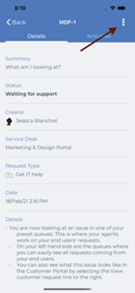
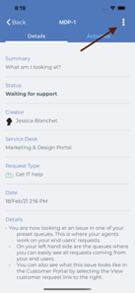
- Transition list with some Actions will appear
...
- In Detail screen press on Status section
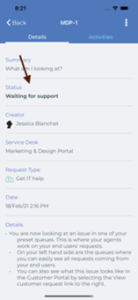
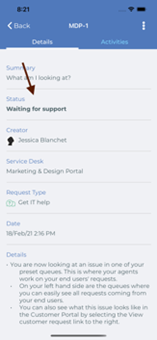
- Then transition list will appear
...
9. Notifications screen
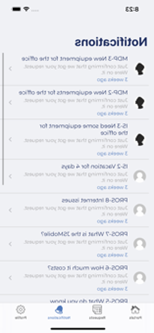
...
10. Details Screen
10.1 Details section
List of all details and assigned data
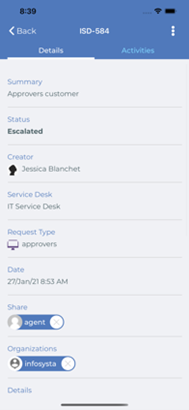
10.2 Activities section
- List of comments
- List of Approvals actions
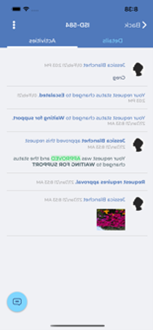
...
11. Add Comment
- From Detail screen press on Activities section
- And then press on the FAB icon
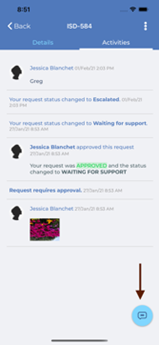
- After that Add comment will appear
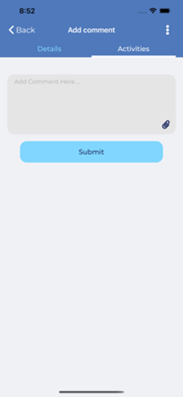
- Add your comment and press Submit
...
12. Two ways to disable or enable notification for specific issue
12.1 From Request List
- Swipe list to the left
- Press on More action, action list should appear.
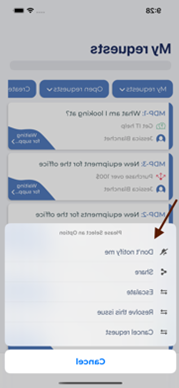
- And you can then enable or disable Notifications for specific Request
12.2 From Details Screen
- Enter Detail screen
- Press on the Vertical ellipse
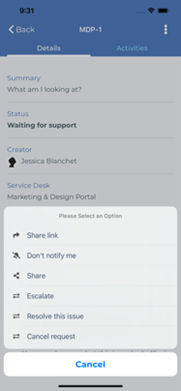
- And you can then enable or disable Notifications for specific Request
...
13. Two ways to share Request with users
13.1 From Request List
- Swipe list to the left
- Press on More action, action list should appear
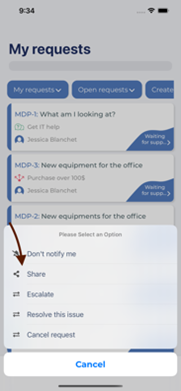
- And then user can share this request with users
13.2 From Details Screen
- Enter Detail screen
- Press on the Vertical ellipse
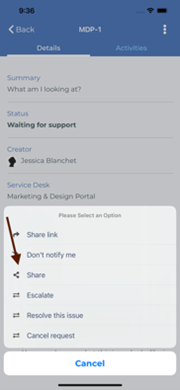
- And then user can share this request with users
...
14. Settings
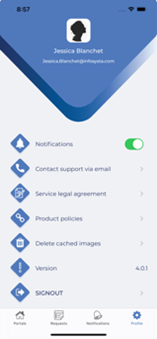
14.1 Enable / Disable Notifications
If notification is Enabled then you will be able to get notifications, else if disabled no notifications will be received
14.2 Contact Support
If users faced any issues or have questions they can contact support team
14.3 Service legal agreement
It will open service legal document
14.4 Product Policies
It will open product policies
...