...
- Open the App
- In Enter JIRA URL Field enter your URL that you use in Web. The URL should start with HTTP/HTTPS (ex: https://css.infosysta.com).
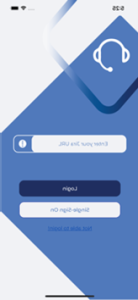
- Press Single-Sign-On Button, you will be redirected to WebView to Login
...
2- Portal Page
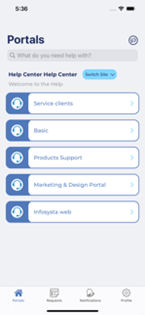
2.1 Switch sites in case of Refined Theme
...
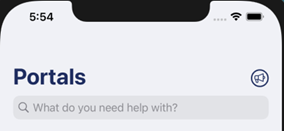
Below how Announcements added in Help center will appear in header of Portal screen
...
3- Two ways to search for KB knowledge articles
3.1 Search from Portal screen
- In portals press on What do you need help with?
- Below screen will appear so you can search for confluence articles and Request Types
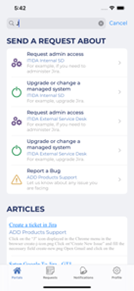
3.2 Search from Request type screen
- In request type screen press on What do you need help with?
- Below screen will appear so you can search for confluence articles and Request Types
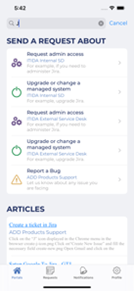
...
4- Request type screen
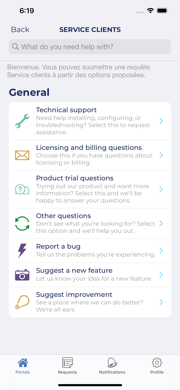
...
5- Create Issue
- Select a specific portal from Portal screen
- Then select the request type you want to create issue on
- After that create screen will appear that contains different fields
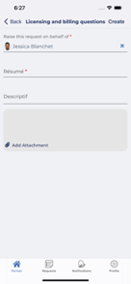
- Fill fields with data and then press Create. Detail screen with the issue created will appear
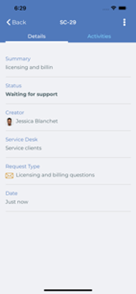
...
6- Three ways to view Detail screen
6.1 From Request List Screen
- Open Requests
- And select the Request you want to view its details. Below screen should be shown
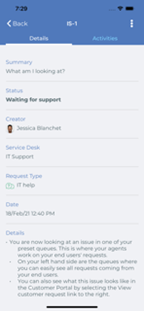
6.2 From Notification Screen
- Open Notifications Screen
- And select the Notification you want to view its details. Below screen should be shown
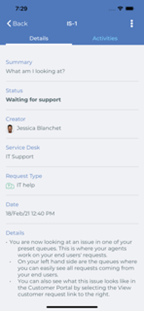
6.3 If you received a notification and you opened it
Suppose you received a notification, then when you press on it details screen will open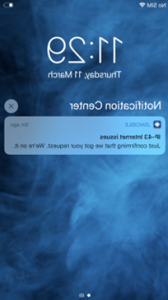
...
7- Request List Screen