
...
- Select a specific portal from Portal screen
- Then select the request type you want to create issue on
- After that create screen will appear that contains different fields
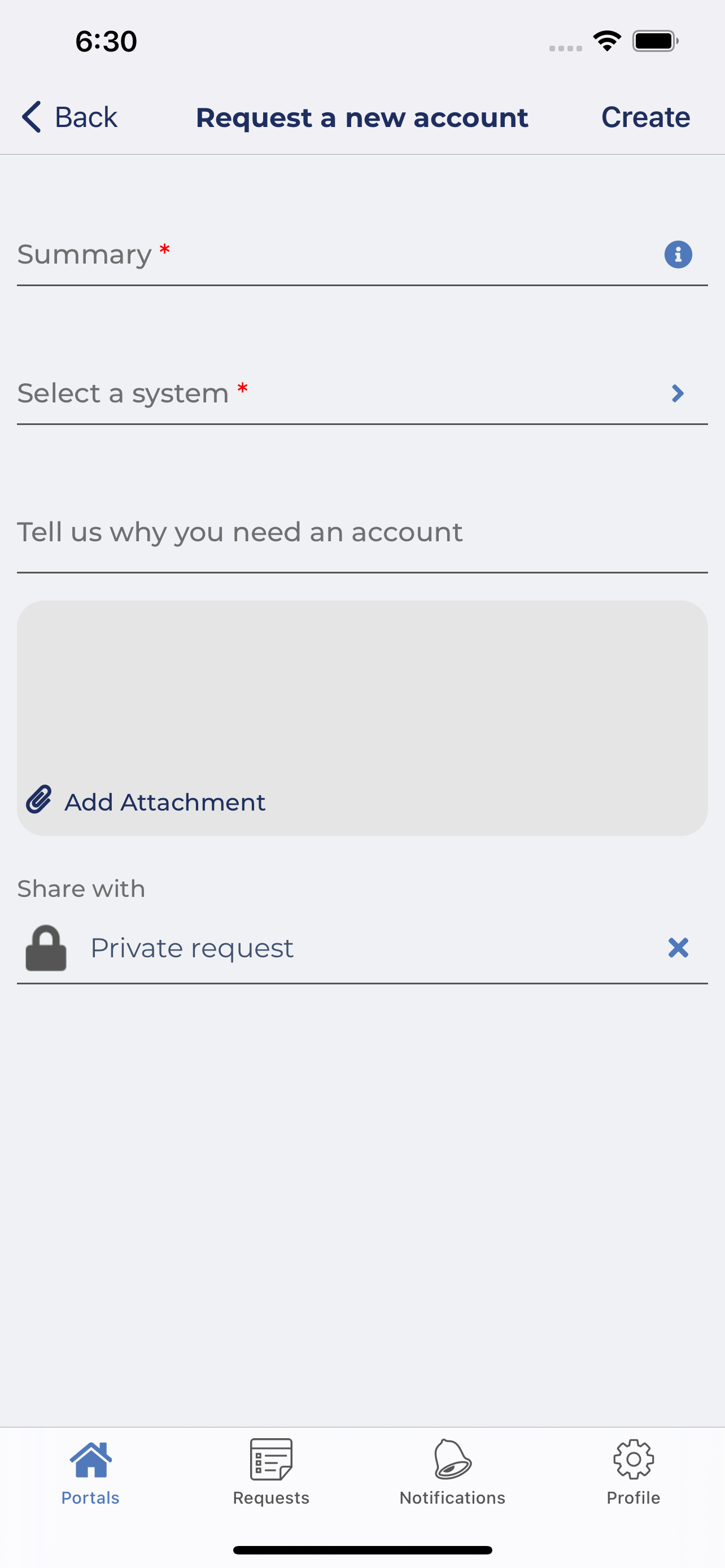
- Fill fields with data and then press Create. Detail screen with the issue created will appear
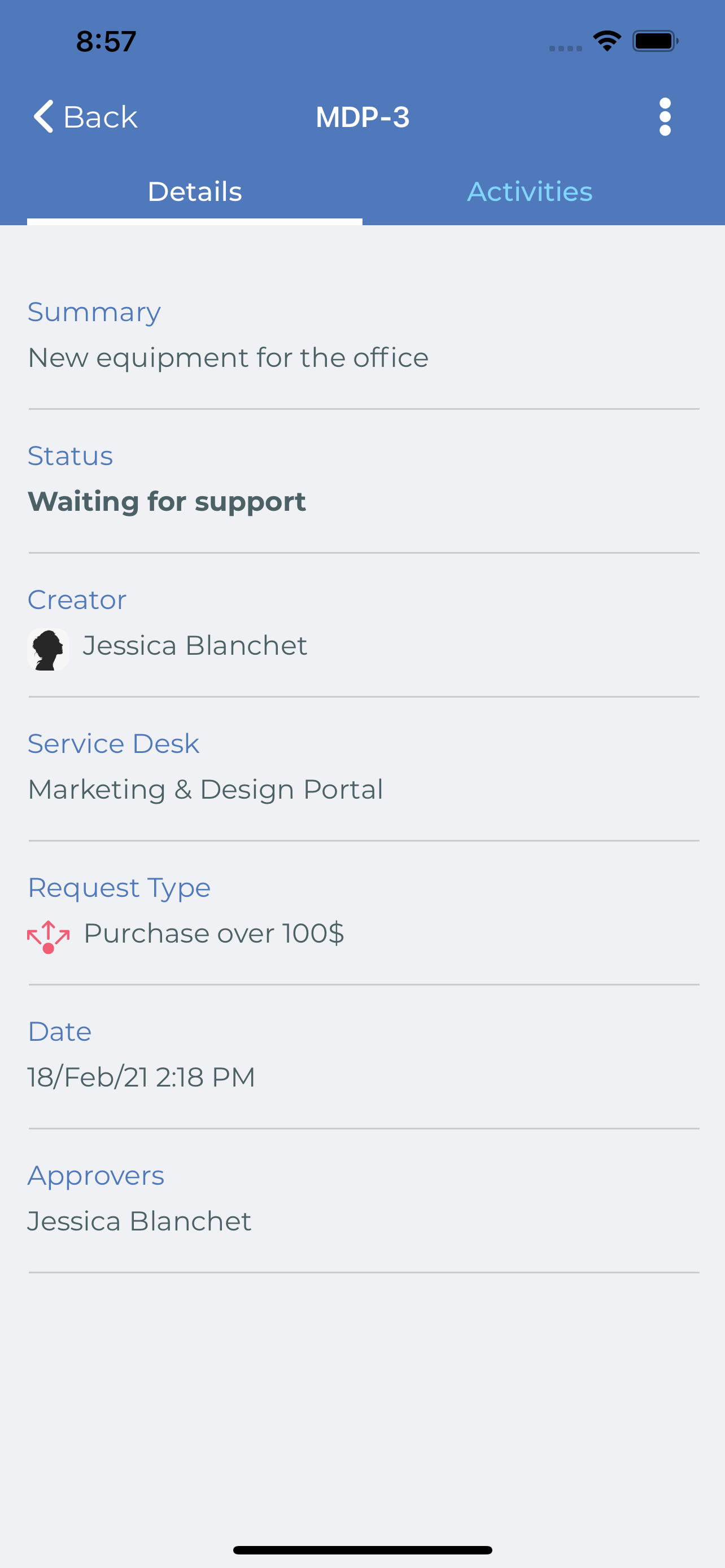
...
6- Three ways to view Detail screen
...
- Open Requests
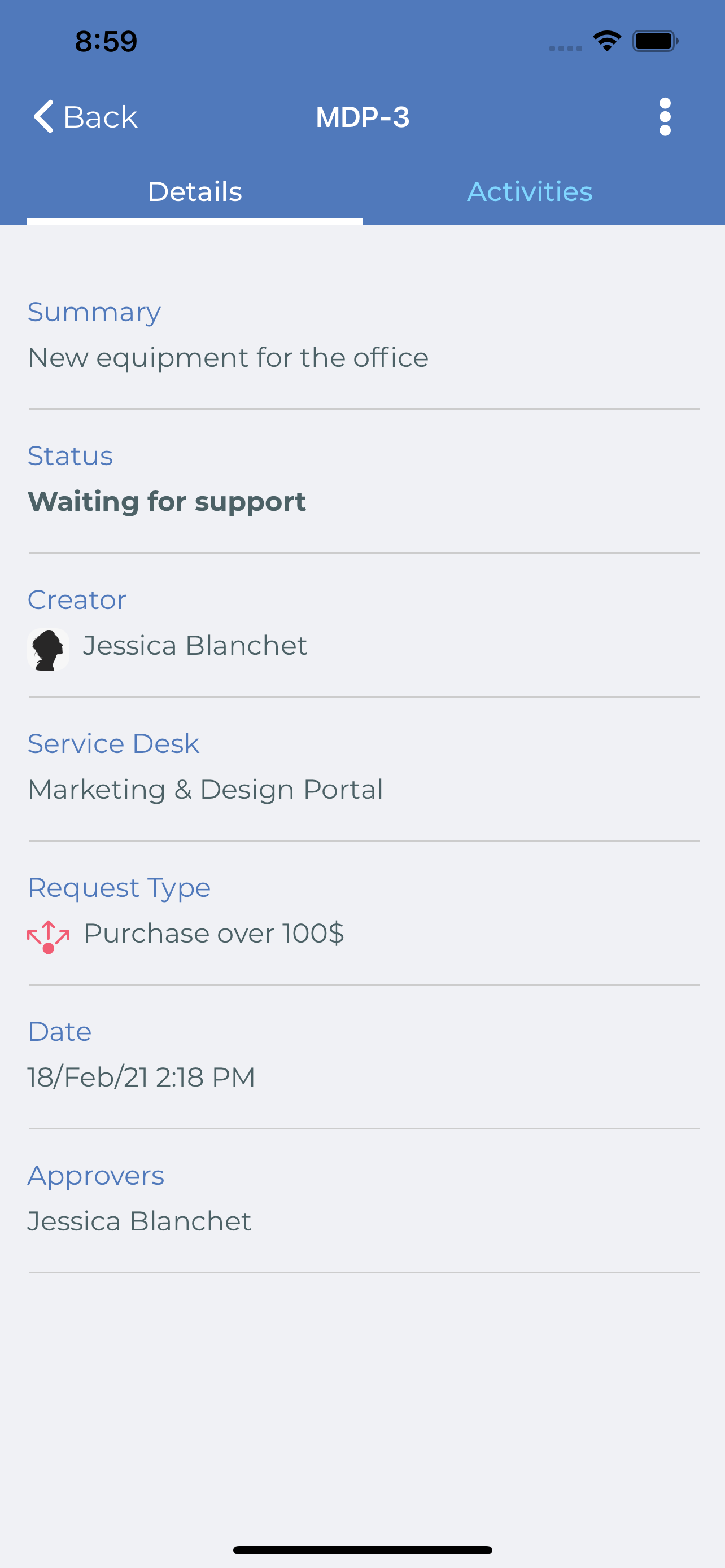
- And select the Request you want to view its details. Below screen should be shown
6.2 From Notification Screen
- Open Notifications Screen
- And select the Notification you want to view its details. Below screen should be shown
6.3 If you received a notification and you opened it
...
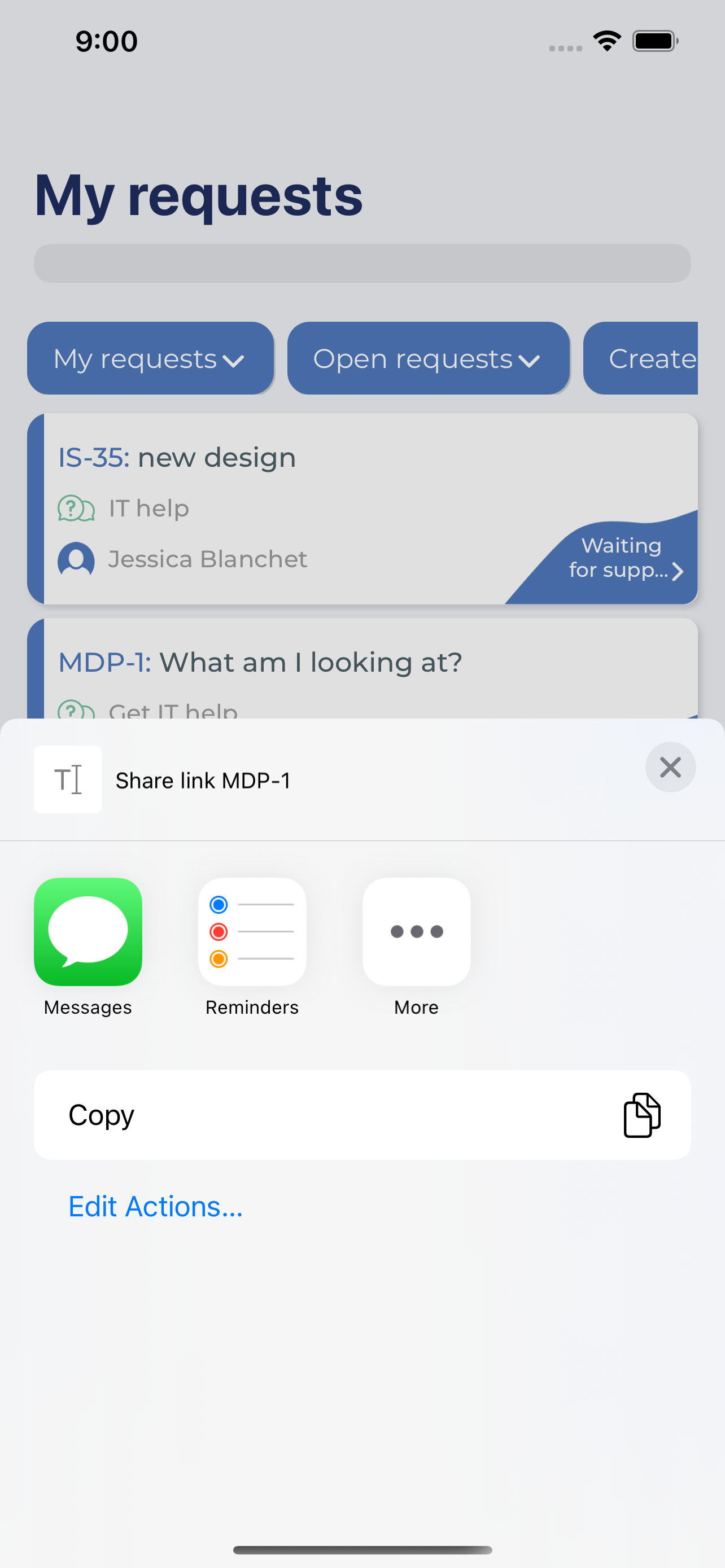
- Press on Share Link
- Below share action will appear to give ability to share your Request link with other Apps
7.4 More Action
- Press on More
- Below action could appear if exists
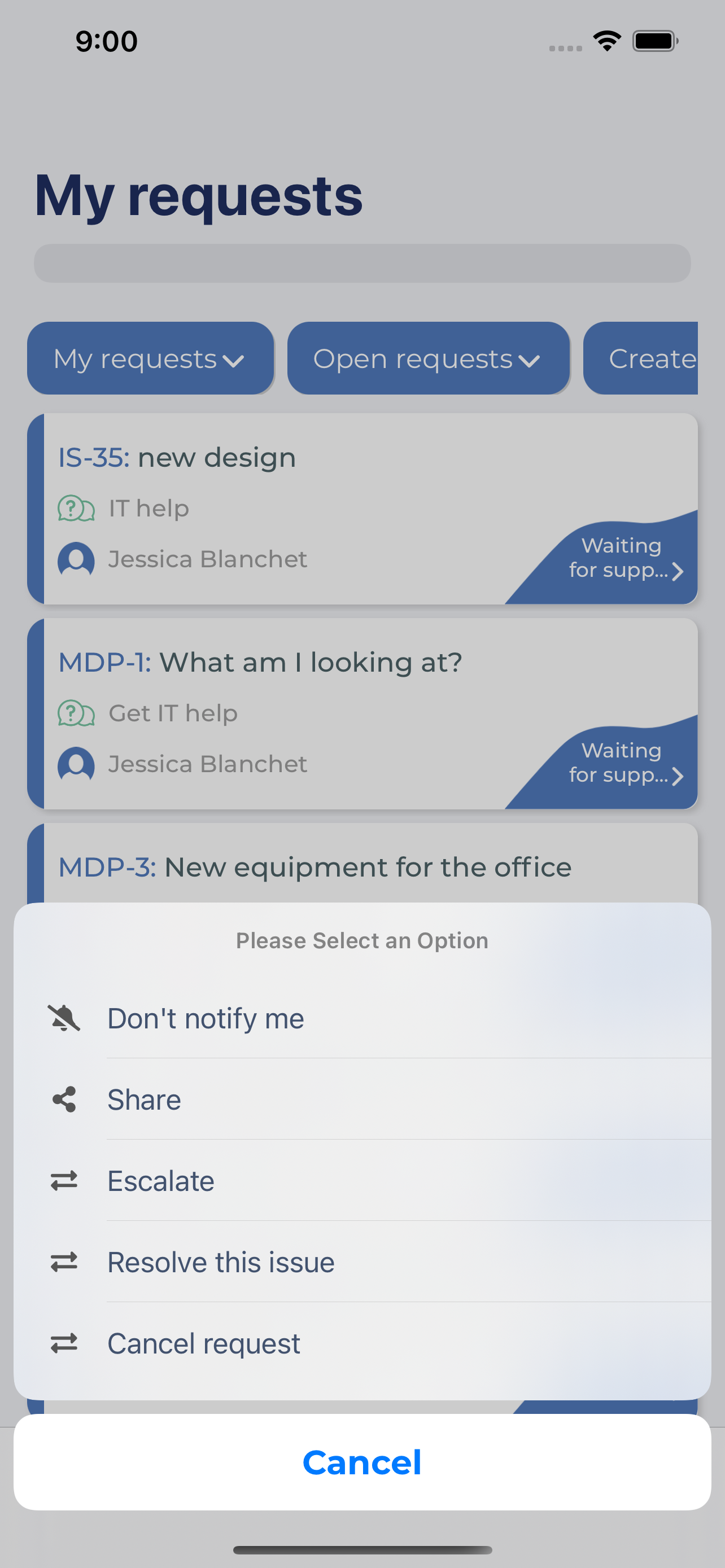
- First option allows you to enable or disable getting notifications on specific ticket
- Second option allow to share your issue with users in your organization
- Last option are Transition options
...