...
Step # | Action |
|---|---|
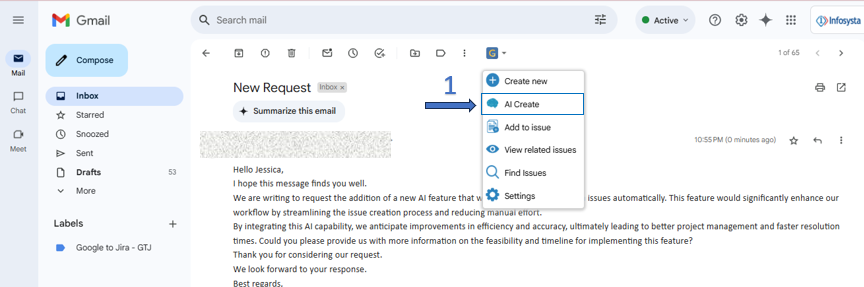
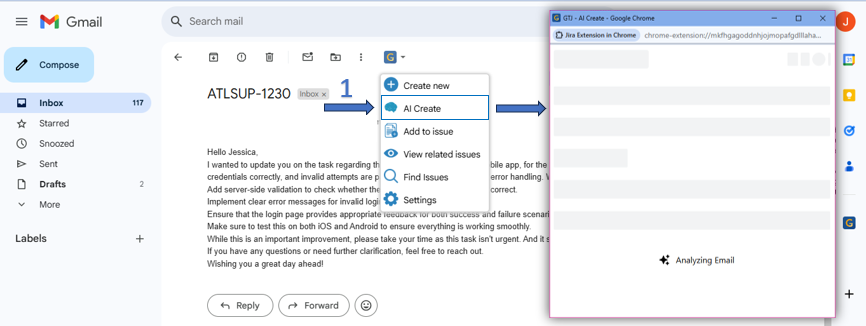
| 1 | Select the GTJ icon to show the menu dropdown |
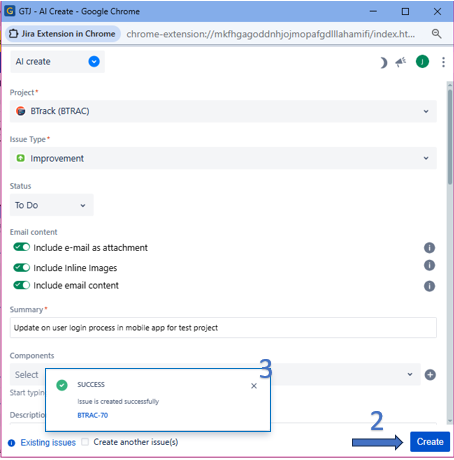
| 2 | Click on the AI create from GTJ options menu |
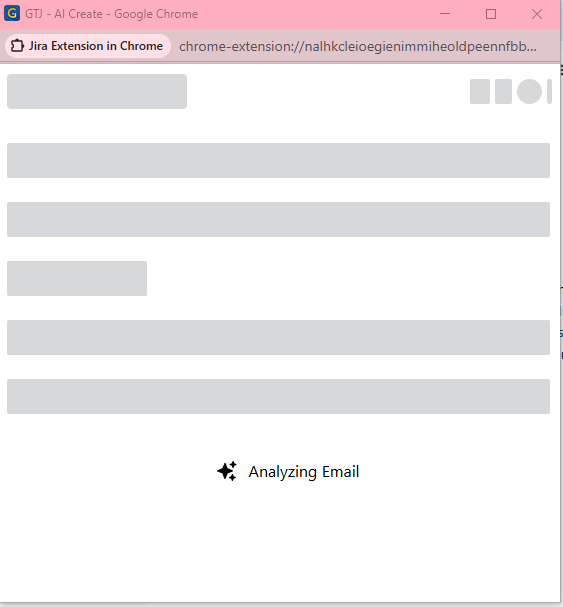
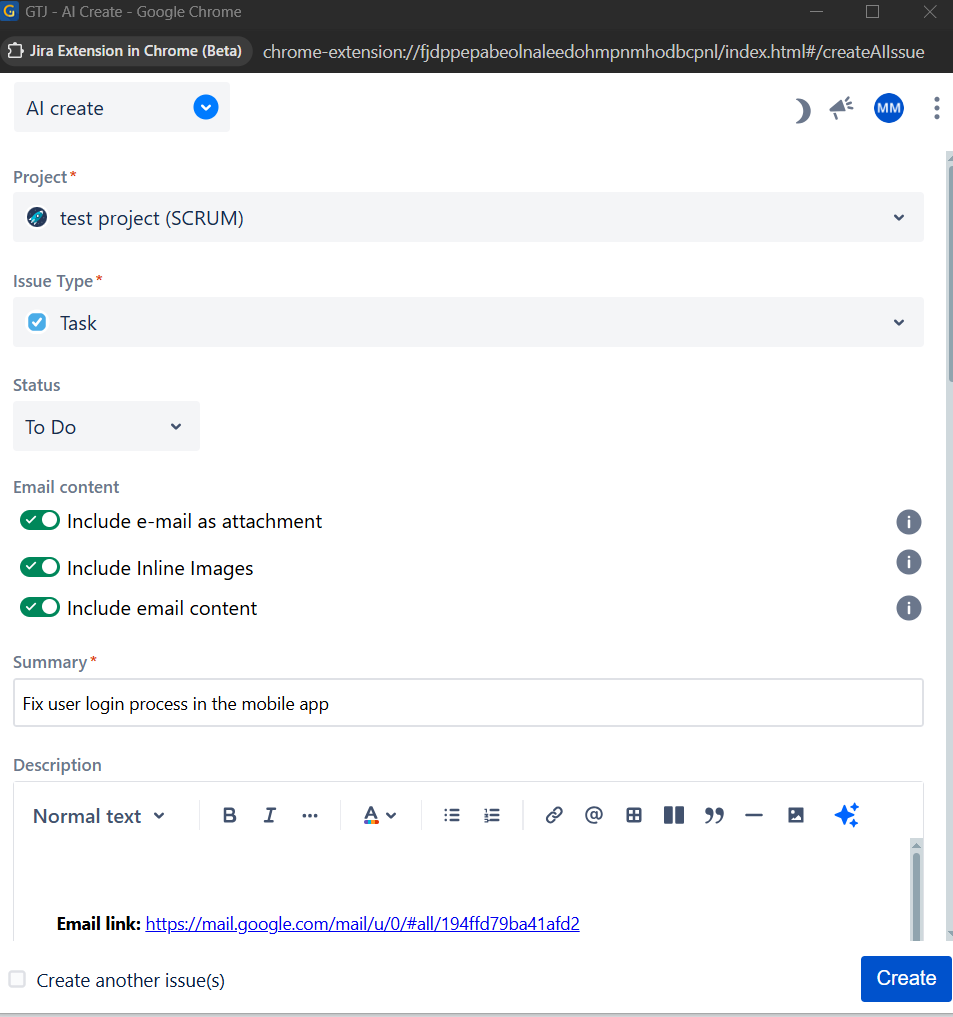
| 3 | Wait for the AI to fill the data |
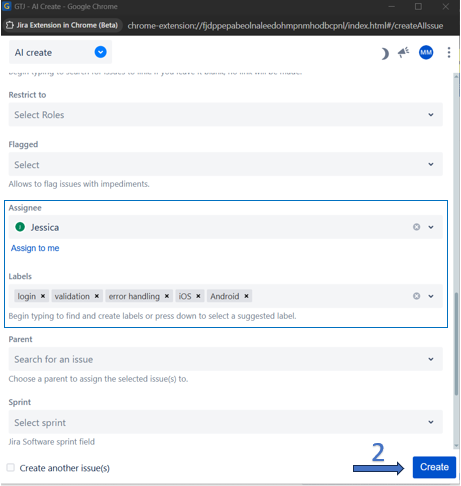
| 4 | Click on the Create button |
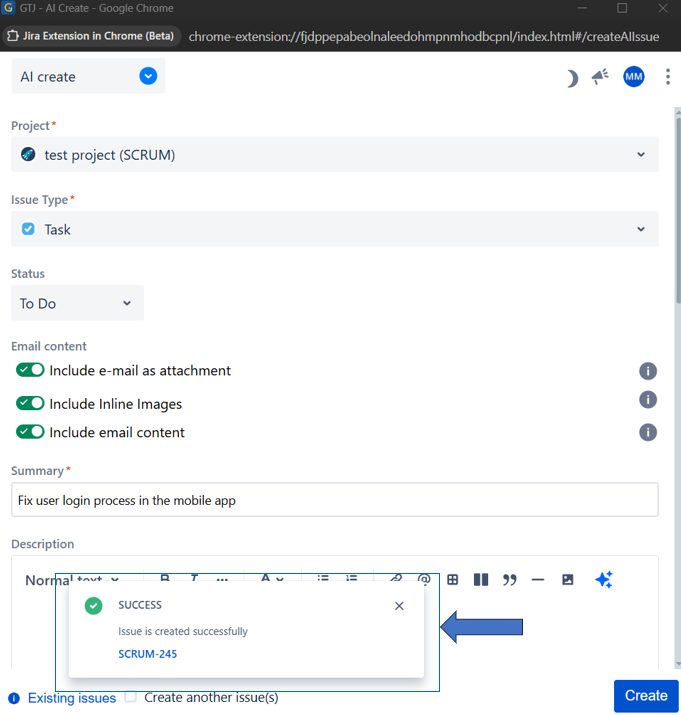
| 5 | You're ticket will be successfully created on Jira |
- Open GTJ extensionJira Extension in Chome, click on AI Create, and AI will start analyzing your Email to retrieve the needed fields data
- Your fields now are filled.
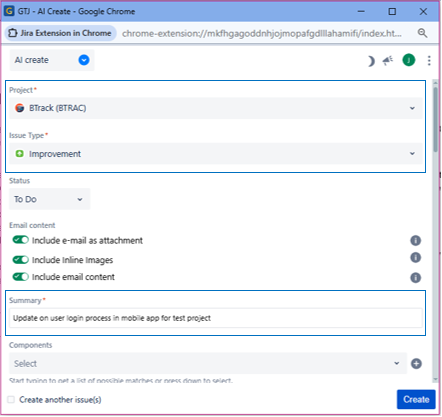
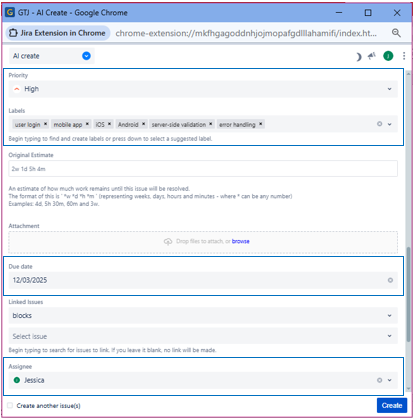
- Click Now your fields are filled, just click on the Create button, and your Jira ticket will be successfully created
| Content by Label | ||||||
|---|---|---|---|---|---|---|
|