Versions Compared

Key

  • This line was added.
  • This line was removed.
  • Formatting was changed.

...

Overview

This page will guide you on Learn how to log work directly from Gmail or Calendar.

Note
You can also log work from edit using the editing issue option.

Quick Steps

Step #

Action

1Go to your Gmail or Calendar
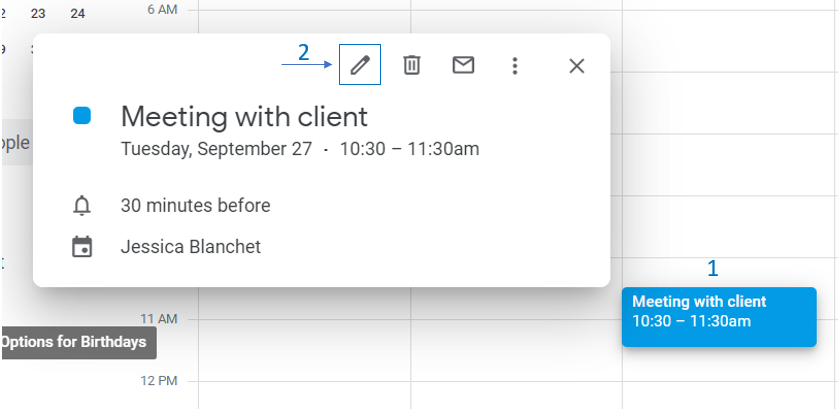
2Select  the an email , or edit the calendar a Calendar event   you wish to add a comment fromusing
3

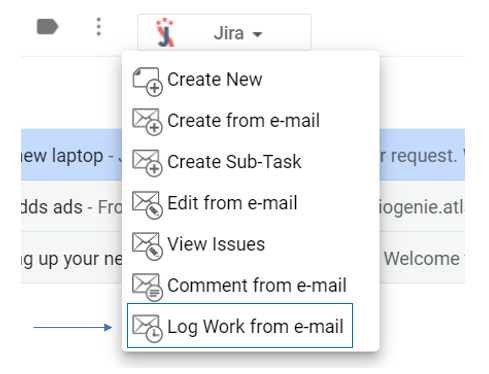
Go to the GTJ Chrome extension and select Log work from e-mail or Log work from Calendar

4

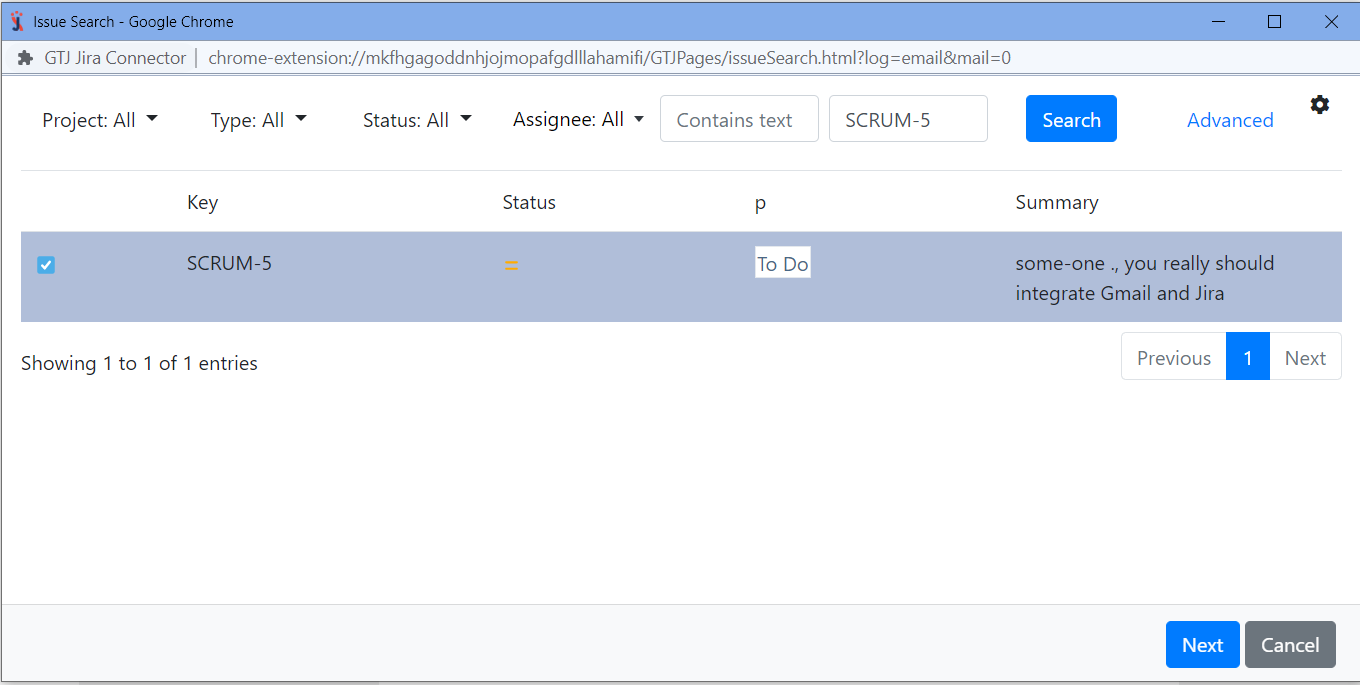
Search for and select your desired the Jira issue you want

5

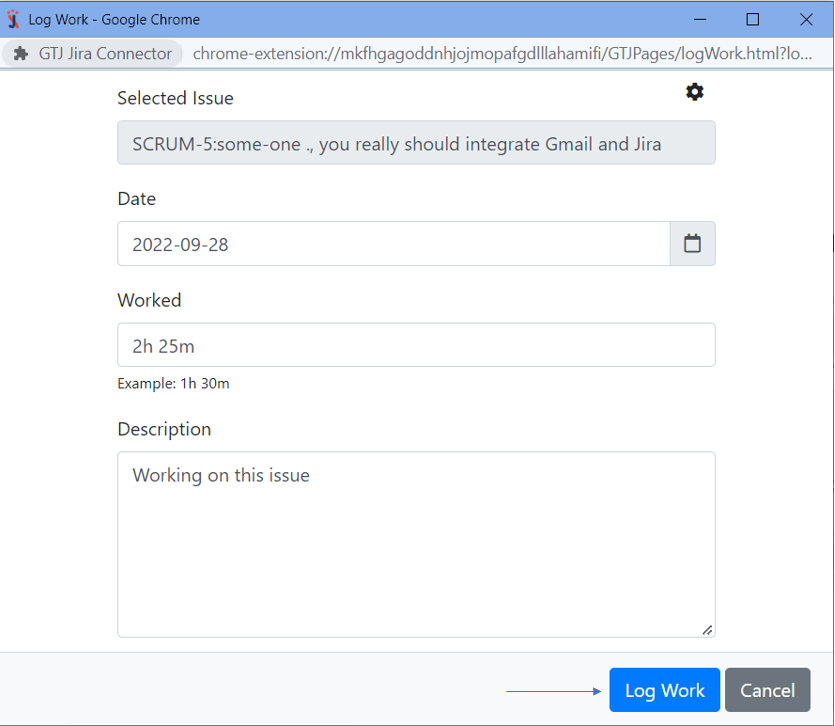
Fill in the requested fields, such as time spent, date, and description

6

Click on Log Work


For more details, you can follow the below these steps:


Expand
titleLog Work From Gmail
  • Select an e-mail → open
  • Open the GTJ Chrome Extension
  • Select → select log work from e-mail


  • Search, for and select your issue, then click nextNext

    Note
    If you didn't found find your desired issue in the table, you can follow this link and check how to search for an issue.


  • Enter thetime spent, date, and description, then click on 'Log work ' button


  • You have successfully logged your work successfully!
Expand
titleLog Work From Calendar
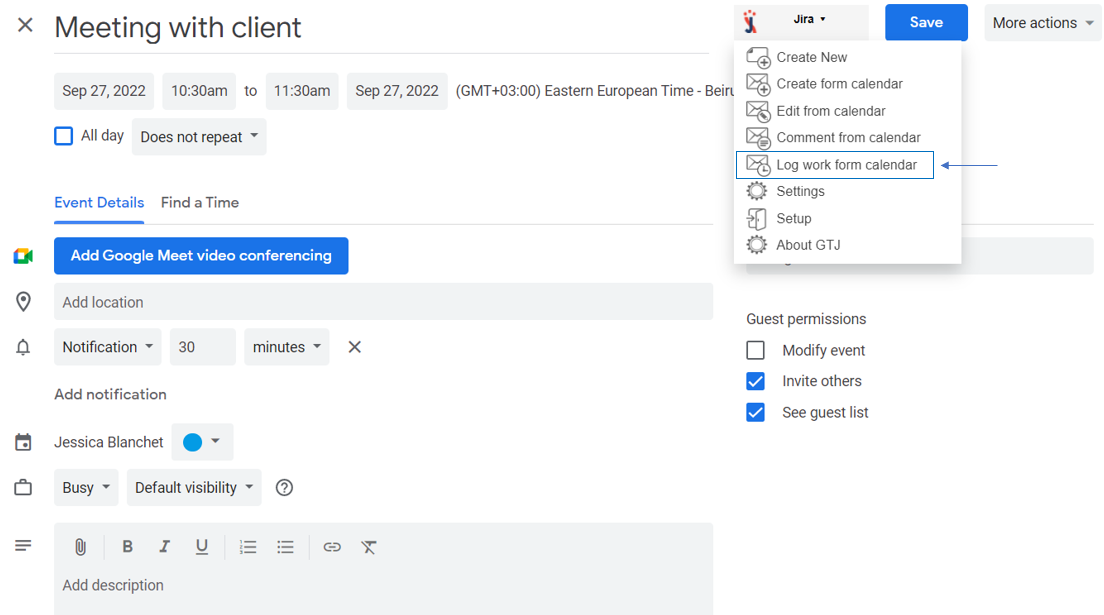
  • Go to your Google Calendar, select
  • Select an event
  • Click on it and click to edit it


  • Open the GTJ Chrome Extension
  • Select → select log work from Calendar


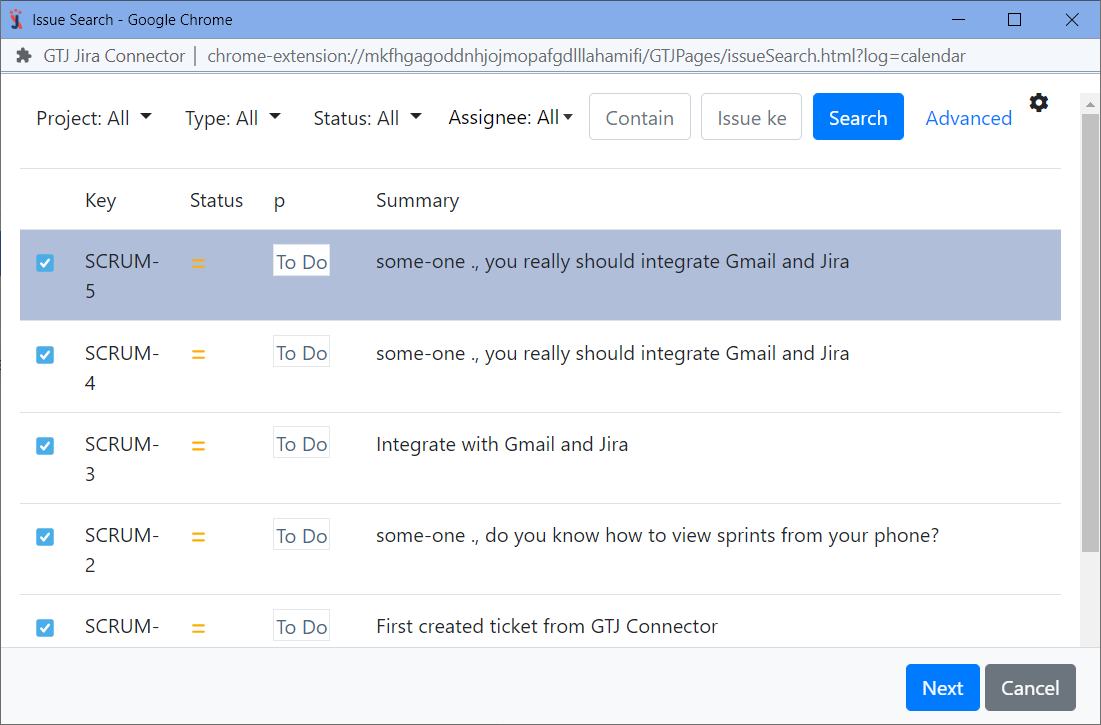
  • Search, for and select your issue, then click nextNext

    Note
    If you didn't found find your desired issue in the table, you can follow this link and check how to search for an issue.


  • Enter thetime spent, date, and description, then click on 'Log work ' button


  • You have logged work successfully!


Tip

Following the above After you follow these steps you'll be able to log work to on Jira issues successfully, and you're ll be ready to explore more features!

...