...
In this section you will learn how to create this application link, please follow the instructions carefully - any misspelling could prevent GTJ from working correctly.
Quick Steps
Step # | Action | ||||||||||
|---|---|---|---|---|---|---|---|---|---|---|---|
| 1 |
| ||||||||||
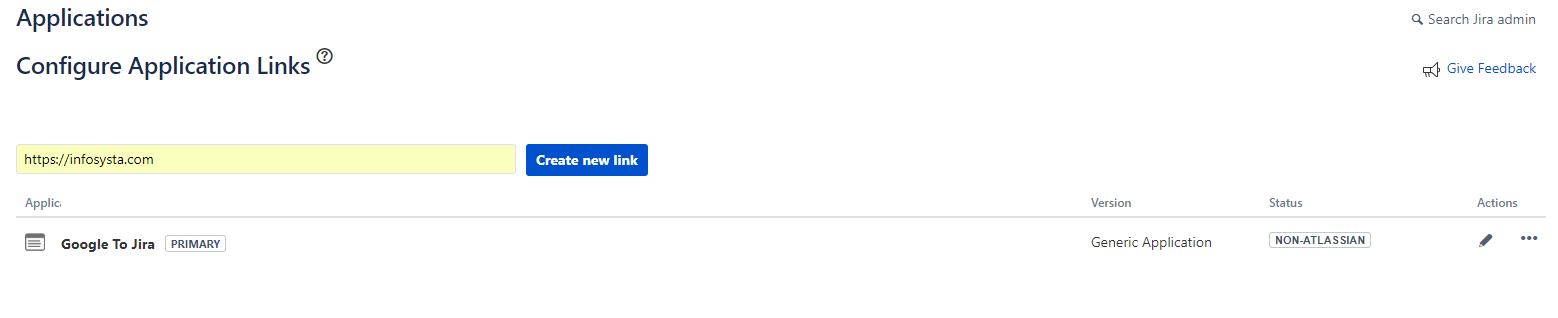
| 2 | New Application Link - Create Afterwards open the menu "Application Links" and create a new link for "https://infosysta.com"
| ||||||||||
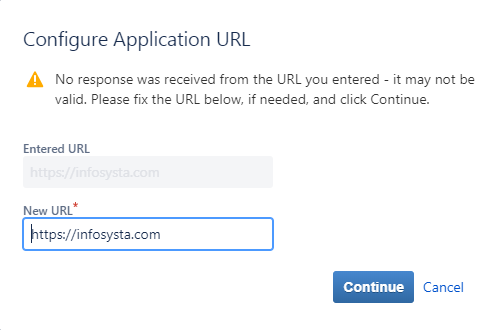
| 3 | New Application Link - Confirm Popup There will be a popup, telling you that no response was received. This is no error. The communication with JIRA will be exclusively done from GTJ, our server will at no time connect to JIRA directly. Just click "Continue" to skip to the next step.
| ||||||||||
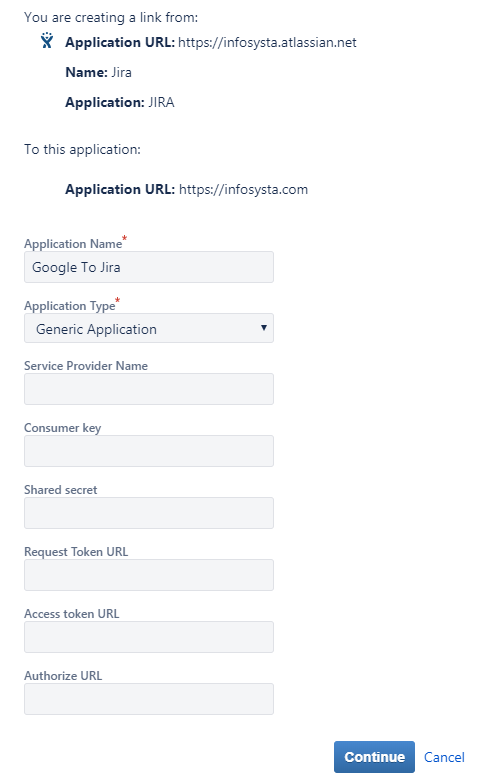
| 4 | New Application Link - Maintain Header Data
| ||||||||||
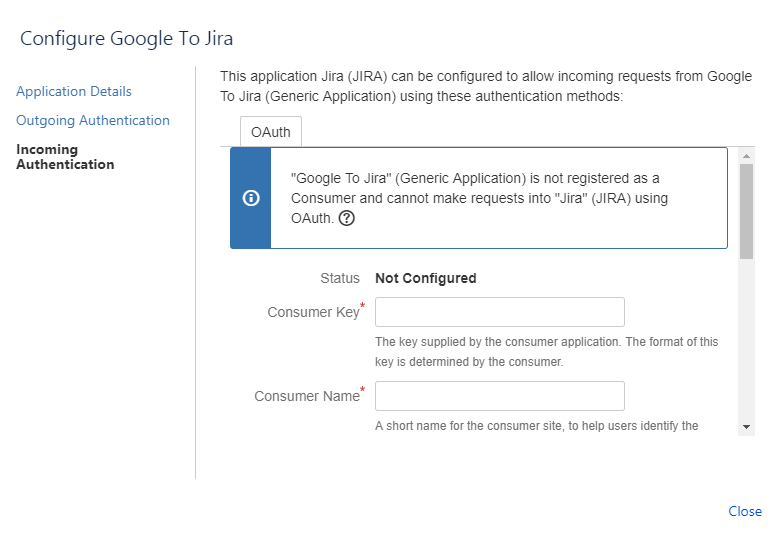
| 5 | New Application Link - Maintain Incoming Authentication There is a bug in JIRA and you cannot directly maintain incoming authentication data. So please save the link first and then edit your newly created application and switch to "Incoming Authentication".
Enter the following values: Please follow these values carefully. Every misspelling may cause errors later on when using GTJ. Better spend a minute now to double-check if everything is correct. Thank you!
| ||||||||||
| 6 | New Application Link - Save Save all your changes. Jira is ready to provide the data to GTJ. |

| Tip |
|---|
Great, Application link now is configured! |