...
When an email matches your rule, the corresponding project and issue type will be pre-selected in the Create screen.
Quick Steps
Step # | Action |
|---|---|
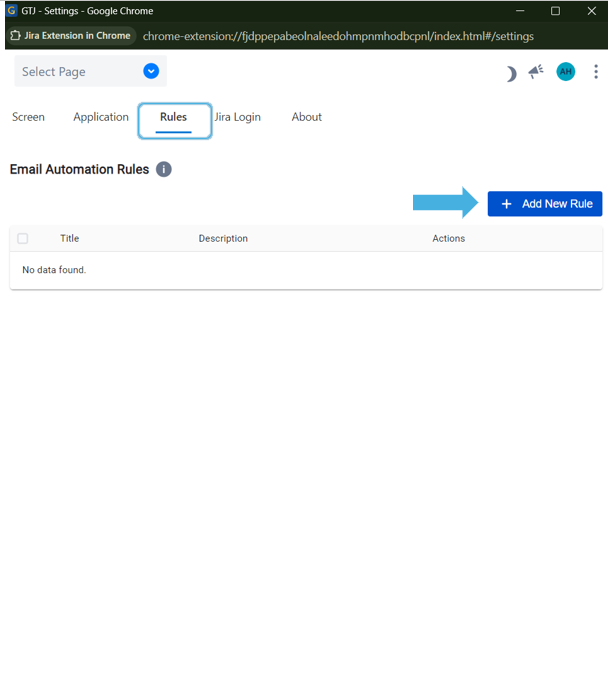
| 1 | Go to Gmail → Open GTJ Chrome extension → Go to the Settings screen, open Rules, and click Add Rule
|
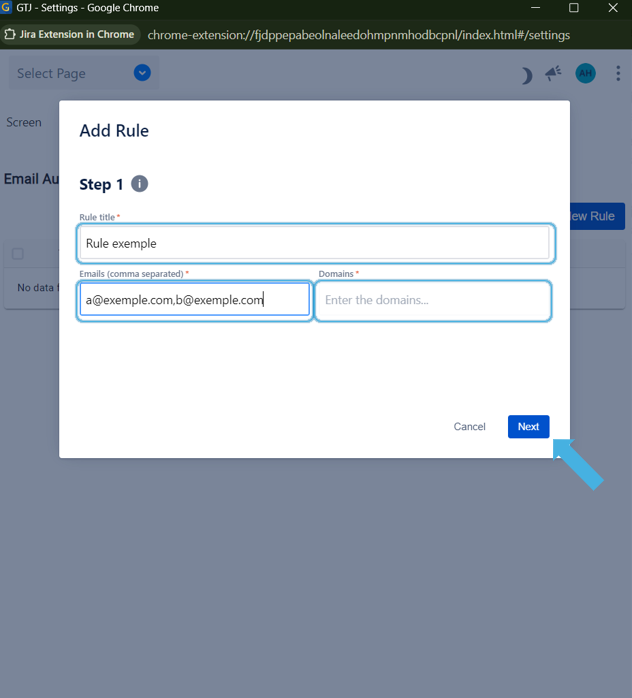
| 2 |
Hint:
|
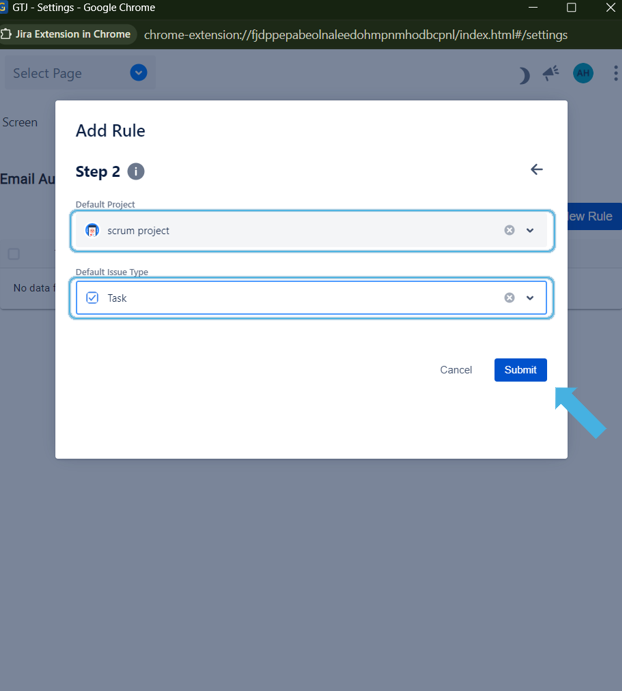
3 | Select the desired Project, Issue Type (and Request Type),
then click Submit |
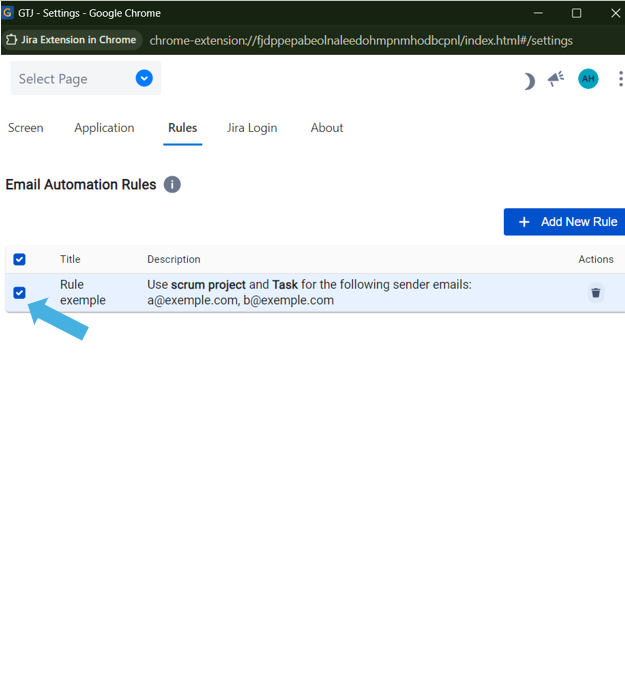
4 | Select the created rule so it will be activated.
|
5 | Now, when you open the Create new page, → if the sender's email or domain matches a selected rule, → the corresponding Project and Issue Type. will be automatically selected. |