Try the New Chrome Extension Design
Overview
You can edit your Jira issues directly from your Gmail or Google Calendar.
| Expand |
|---|
| title | Editing issues allows you to |
|---|
|
- Edit summary
- Description
- Assignee
- Labels
- Include the 'email attachments', 'inline images', or include the 'email as attachment'
- Edit the reporter
- Upload files
- Add a flag
- Environment
- Add a comment
- Link the issue
- Log work
|
Quick Steps
Step # | Action |
|---|
| 1 | Go to your Gmail or Google Calendar |
| 2 | Select an email, or a Calendar event you wish to edit a ticket from |
| 3 | Go to the GTJ Jira Extension in Chrome extension and select Edit from e-mail or Edit from Calendar |
| 4 | Search and select your desired Jira issue |
| 5 | Fill in the requested fields such as Assignee, Reporter, Flag, Environment, Labels |
| 6 | Select from the check boxes checkboxes the e-mail or event content that you need to include as comment, description, attachments |
| 7 | To upload attachments, you can drop or browse files to attach |
| 8 | Click on Link issue or Log work to expand |
| 9 | Click on Update |
...
| Expand |
|---|
|
- Select an e-mail
- Open the GTJ Jira Extension in Chrome Extension
- Select Edit from e-mail

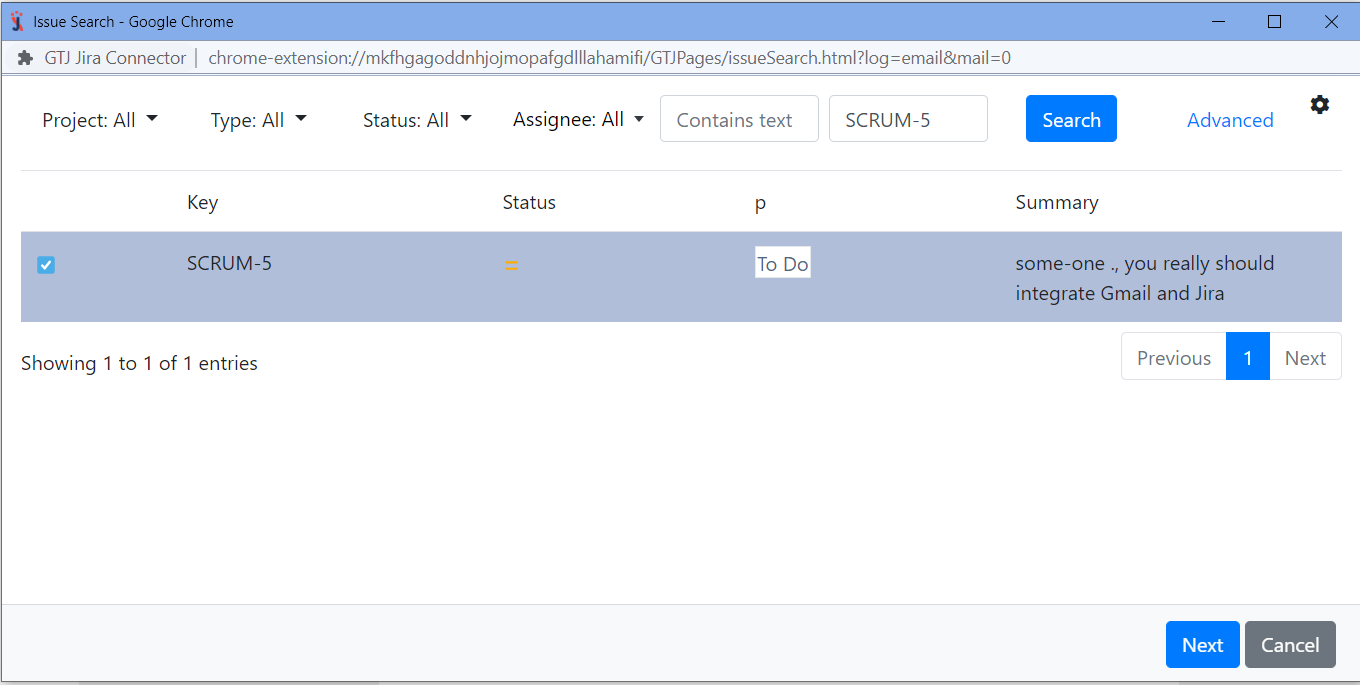
By editing your issue you can: - Edit the Summary, the Description, Assignee, Labels
- Include Email attachments, Include inline images, or Include the email as attachment
- All you need to do is to edit the fields you want and select the check boxes checkboxes that include the options you'd like to include

- You can also edit the Reporter, Upload files, Add a flag, Environment, Add a comment
- Once done, click on the Update button
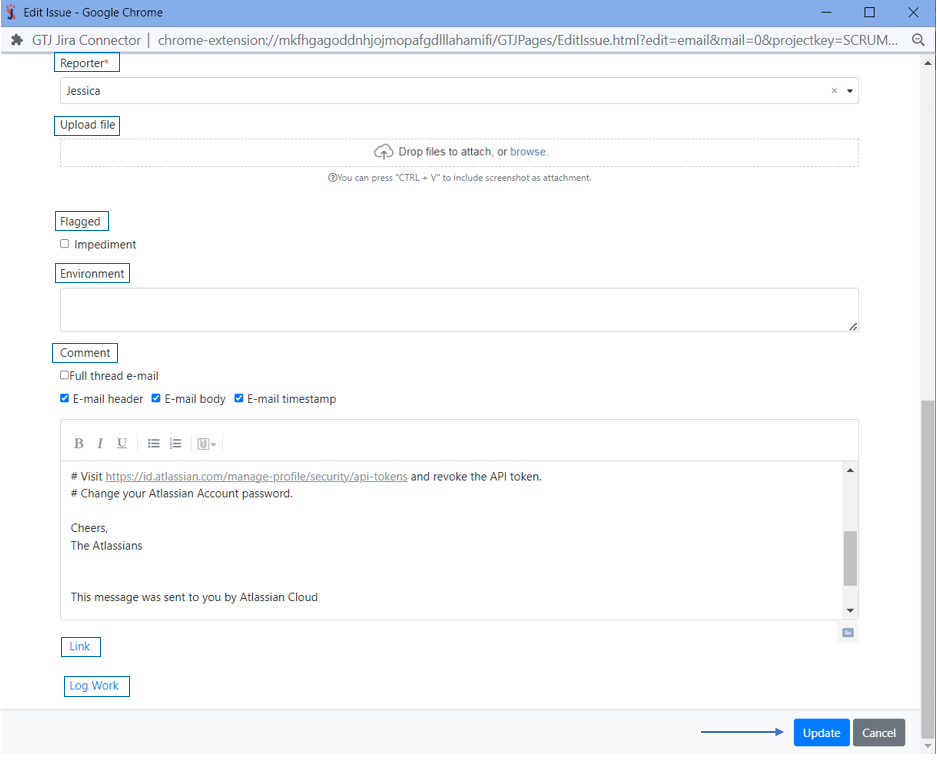 - You can Link this issue,and Log work
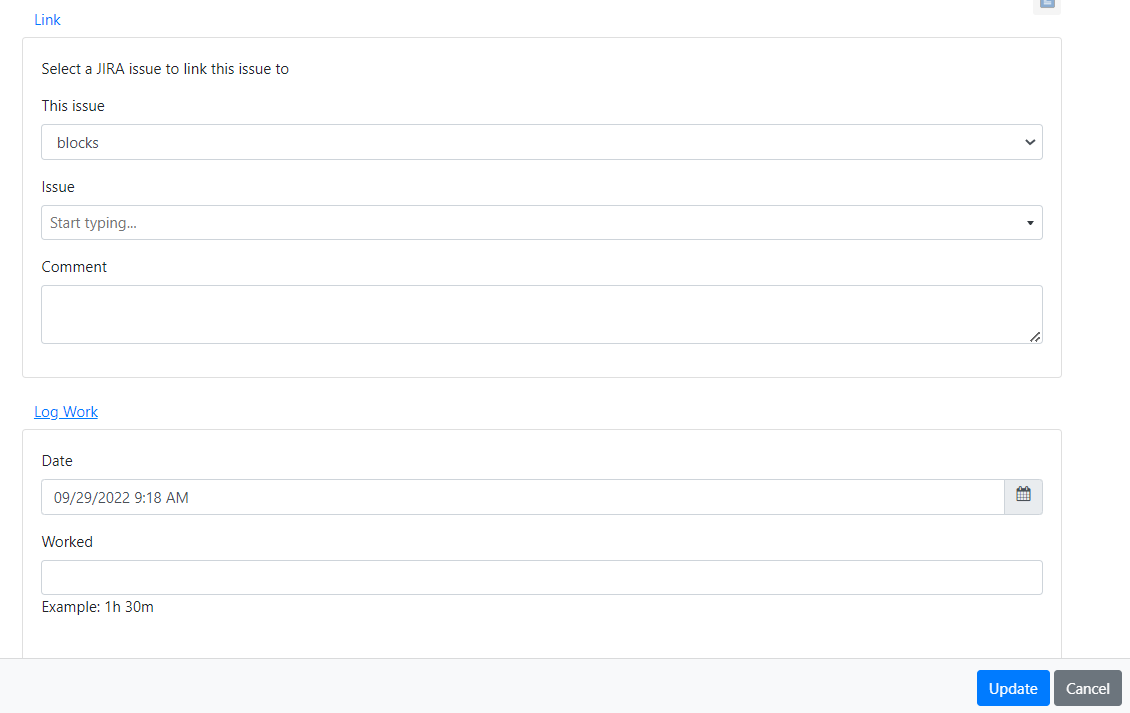 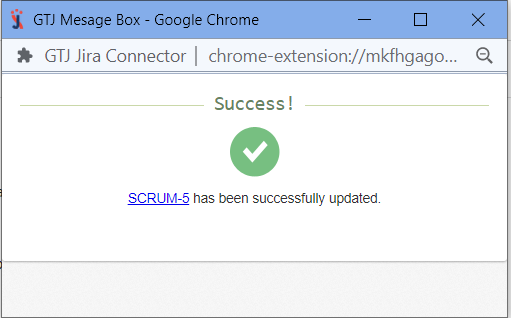 - You have successfully edited your issue!
|
| Expand |
|---|
|
- Go to your Google Calendar
- Select an event and click on it to edit it
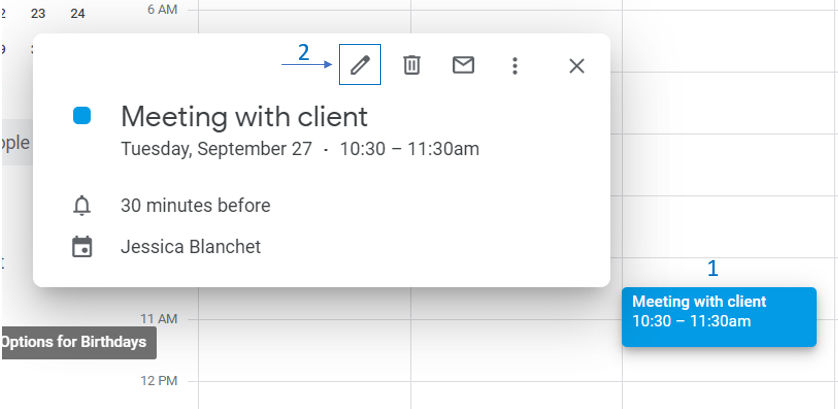
- GTJ Chrome Extension Open Jira Extension in Chrome
- Select Edit from Calendar

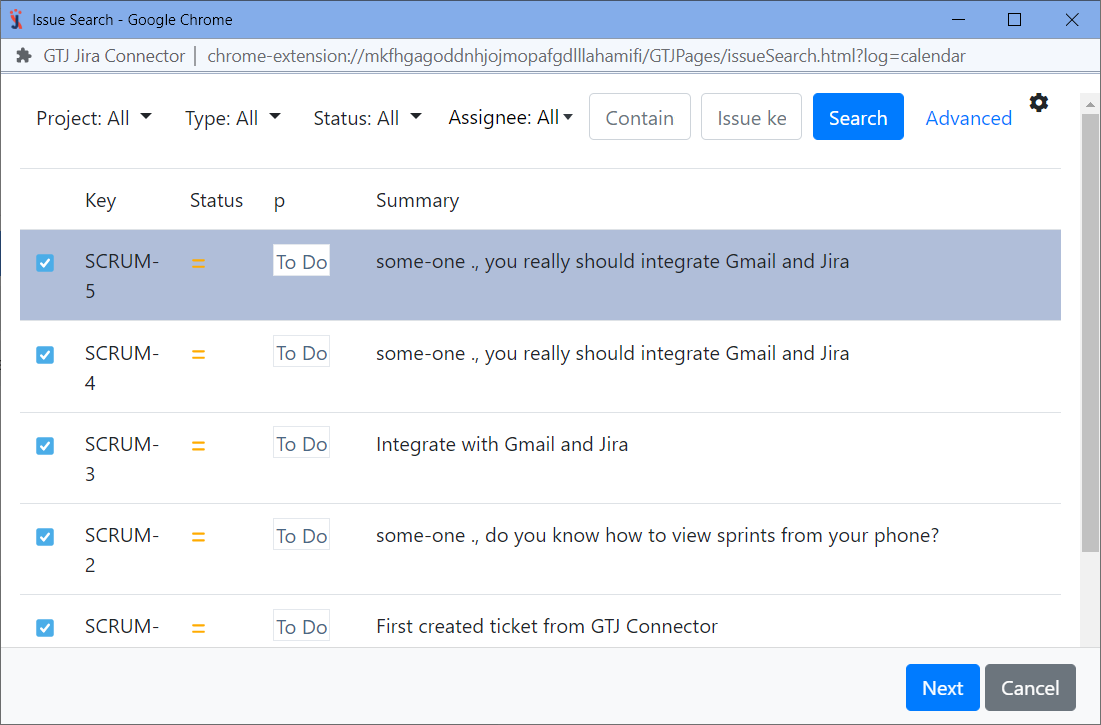
By editing your issue, you can: - Edit the Summary, the Description, Assignee, Labels,Reporter, and Upload files

- You can also Add a flag, Environment, Add a comment, Link this issue,and Log work
- Once done, click on the Update button
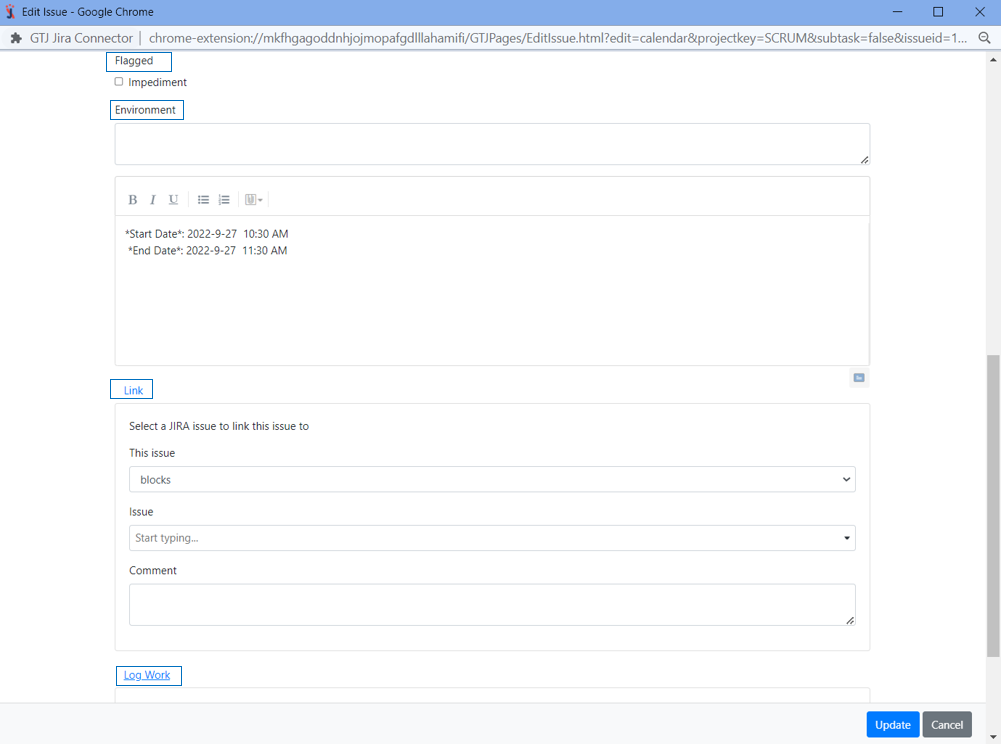 - You have successfully edited your issue!
|
...