Feature Overview
This guide will instruct you on how to tag the emails associated with Jira issues you've created to maintain a record of them.
Follow these steps
You can disable this feature whenever you like from the Settings screen.
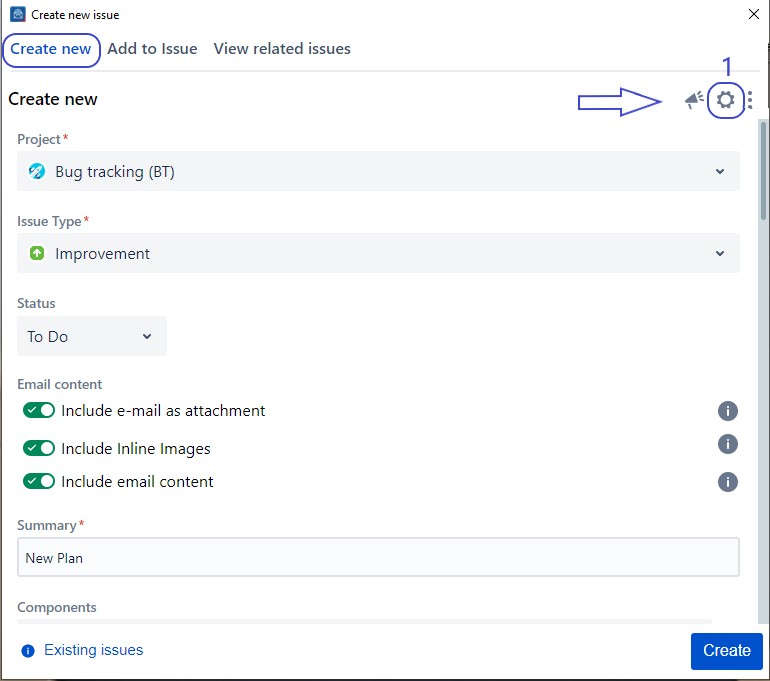
1. Go to the Settings screen
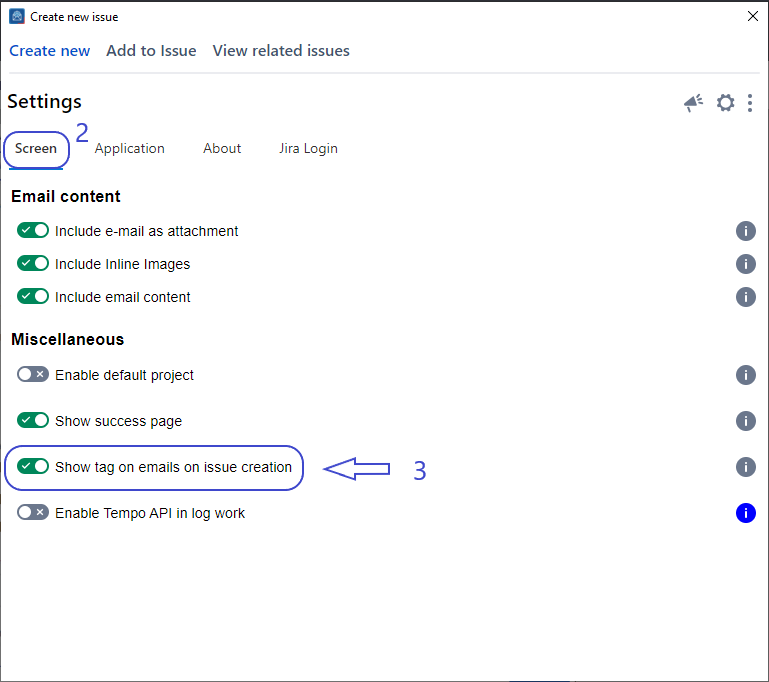
2. Click on the Show tag on emails on issue creation toggle to enable this feature
3. Go to the Create Screen and Create an Issue
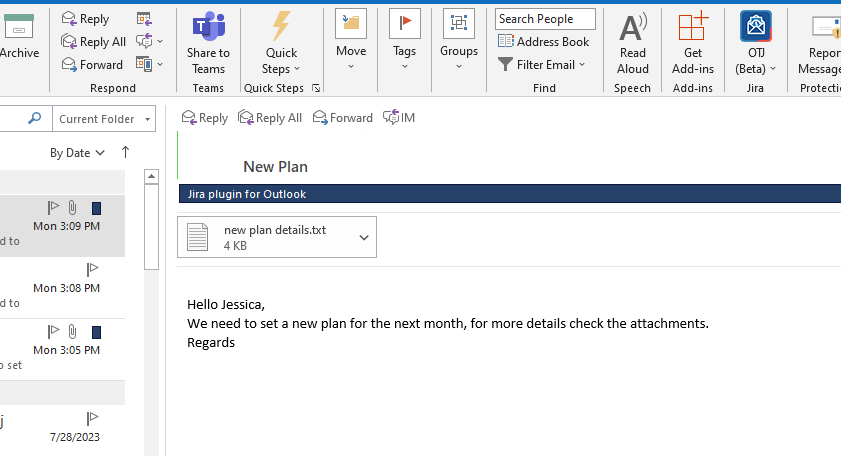
4. After creating an issue, you'll be able to see the category tag
These settings will be stored for your account and automatically applied whenever you open the app.
Related Content
-
Core - How to Enable Tempo API to Log Work (Microsoft Outlook for Jira)
-
Core - How to Set a Default Project and Issue Type (Microsoft Outlook for Jira)
-
Core - How to Customize Which Email Information to Include (Microsoft Outlook for Jira)
-
Core - How to Create a New Component (Microsoft Outlook for Jira)
-
Core - How to Show/Hide Fields (Microsoft Outlook for Jira)
-
Core - How to Create a New Fix Version (Microsoft Outlook for Jira)
-
Core - How to Link Issues from the Create Screen (Microsoft Outlook for Jira)
-
Core - How to Create a Subtask (Microsoft Outlook for Jira)
-
Core - How to Log Work from the Create Screen (Microsoft Outlook for Jira)
-
Core - How to Create New Jira Issues from Microsoft Outlook for Jira (Microsoft Outlook for Jira)
-
Core - How to Create a New Customer in a Service Desk Project (Microsoft Outlook for Jira)
-
Core - How to Preview Attachments (Microsoft Outlook for Jira)
-
Core - How to Rename Attachments (Microsoft Outlook for Jira)
-
Core - How to Mention User in description (Microsoft Outlook for Jira)
-
Core - How to View Screen Tabs (Microsoft Outlook for Jira)