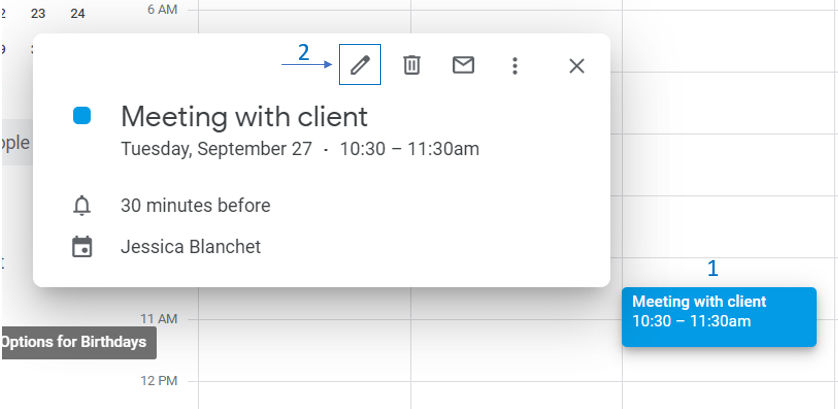
- Select an e-mail → open GTJ Chrome Extension → select 'Edit from e-mail'

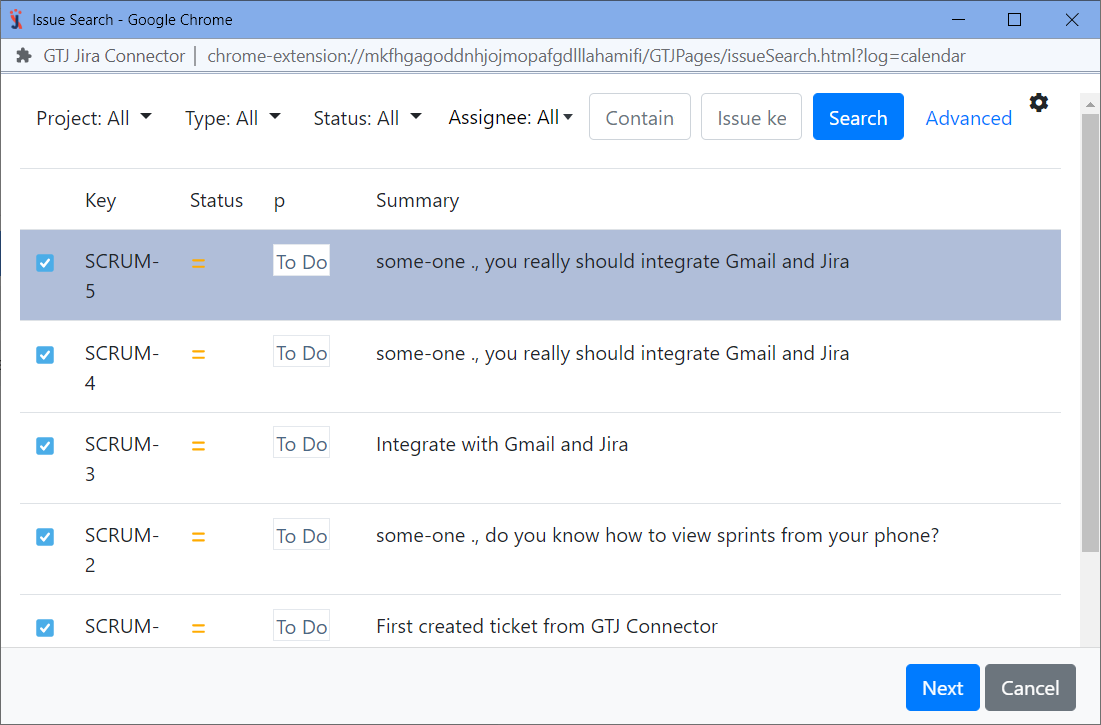
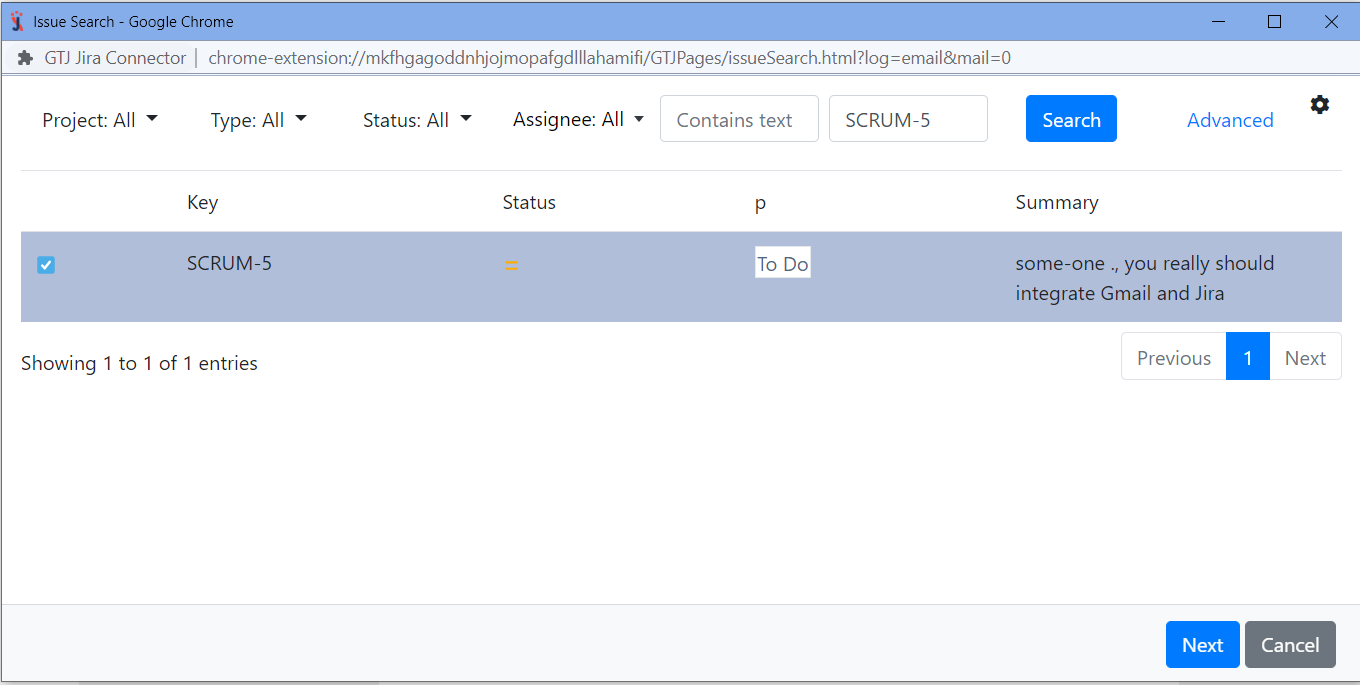
Search, and select your issue, then click next
If you didn't found your desired issue in the table, you can follow this link and check how to search for an issue
- By editing your issue you can:
- Edit the 'summary', the 'description', 'assignee', 'labels', also you can include the 'email attachments', 'inline images', or include the 'email as attachment'
- All you need to do is to edit the fields you want and select from the checkboxes the options you'd like to include

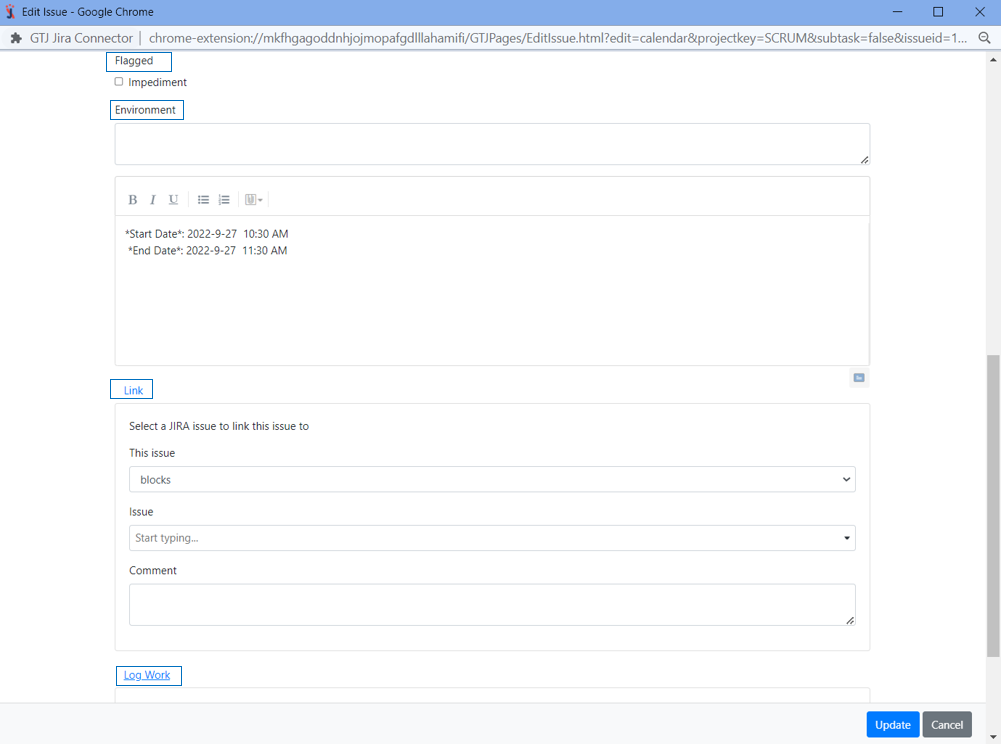
- You can also 'edit the reporter', 'upload files', 'add a flag', 'environment', 'add a comment', 'Link this issue', and 'log work'
- Once done click on 'Update' button
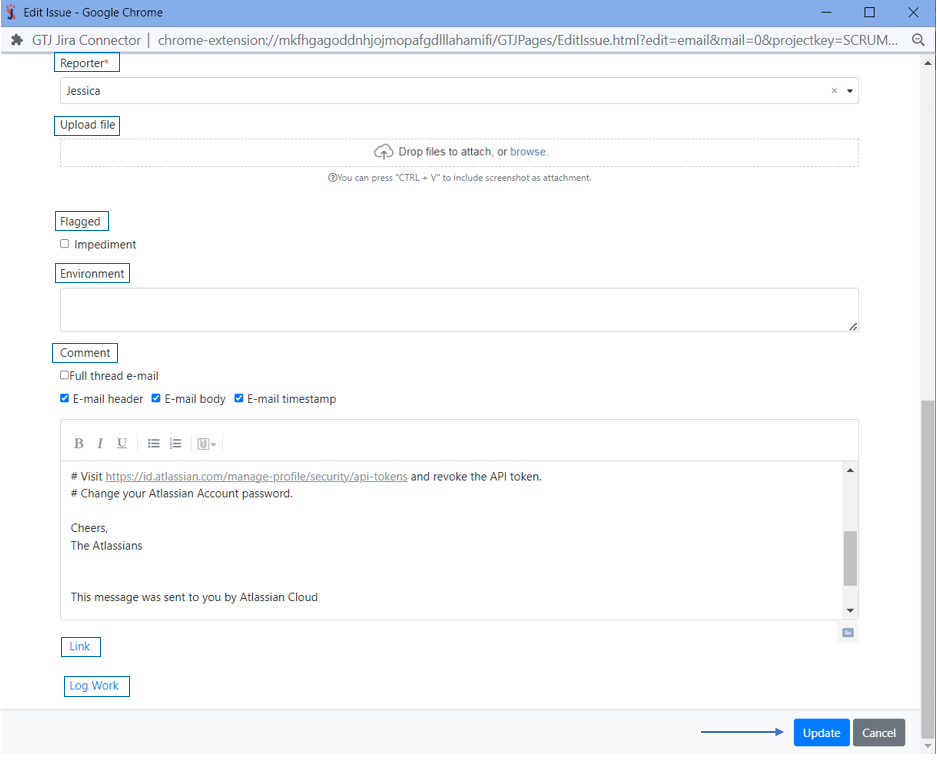
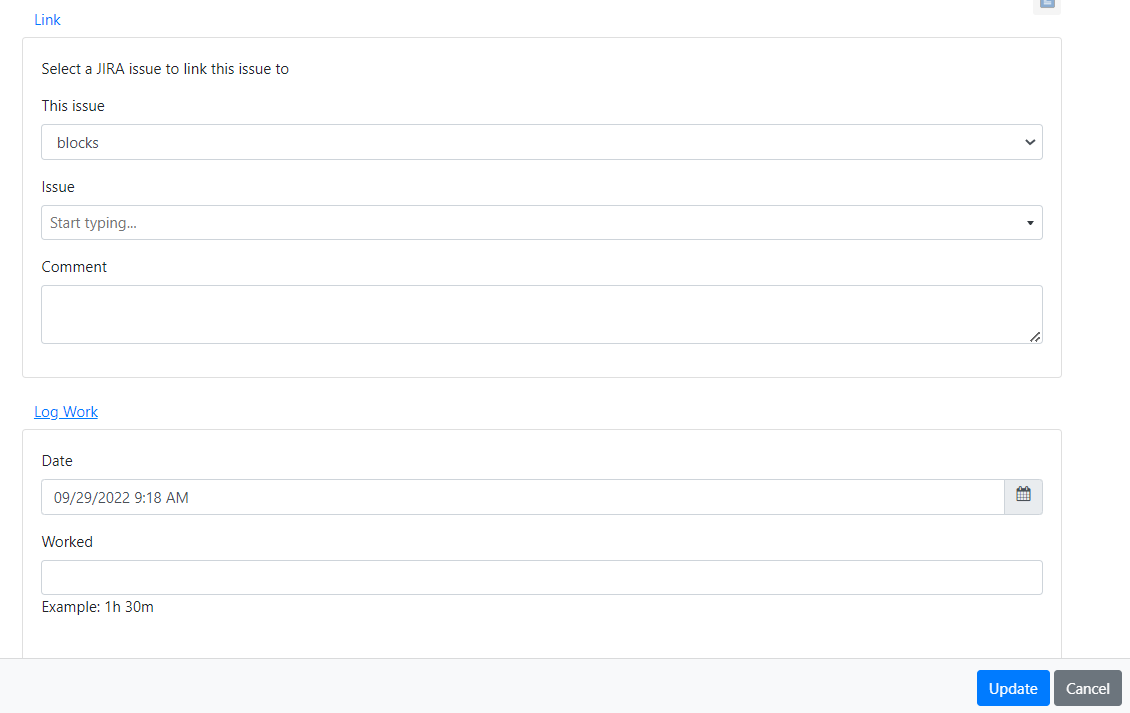
- You can 'Link this issue', and 'log work', by clicking on link or log work button
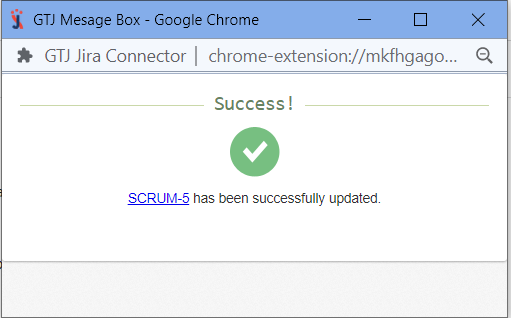
- You have edited your issue successfully!