Overview
Learn how to add comments to Jira issues directly from Gmail or Calendar.
Quick Steps
Step # | Action |
|---|
| 1 | Go to your Gmail or Calendar |
| 2 | Select an email, or edit a Calendar event that you wish to add a comment using |
| 3 | Go to the GTJ Chrome extension and select Add to issue or View related issues |
| 4 | Search for and select your desired Jira issue |
| 5 | Click on the three dots on the upper right side |
| 6 | choose Add comment option |
| 7 | you will be redirected to another page |
| 8 | Click on Add Comment |
For more details, you can follow these steps.
- Select an e-mail
- Open the GTJ Chrome Extension
- Select Add to issue or View related issues
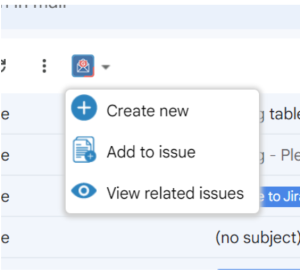 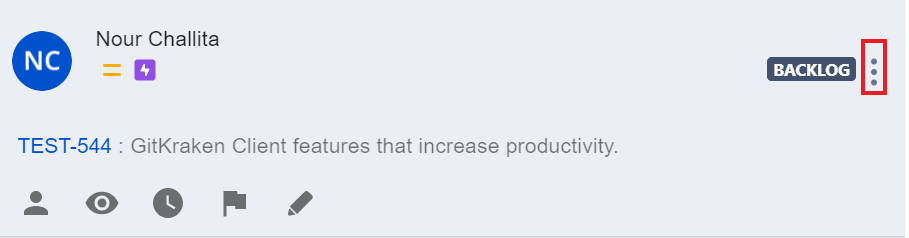
- click on Add comment option.
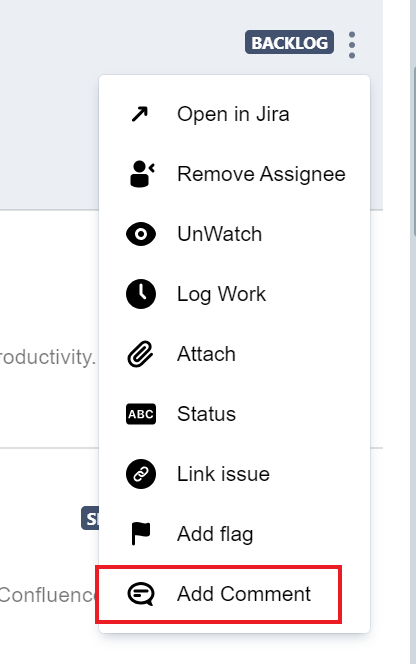
| If you didn't find your desired issue in the table, you can follow this link and check how to search for an issue there. |
- you will be redirected to the add comment page
- you can include Email content or add a comment
- click on Add when you are done
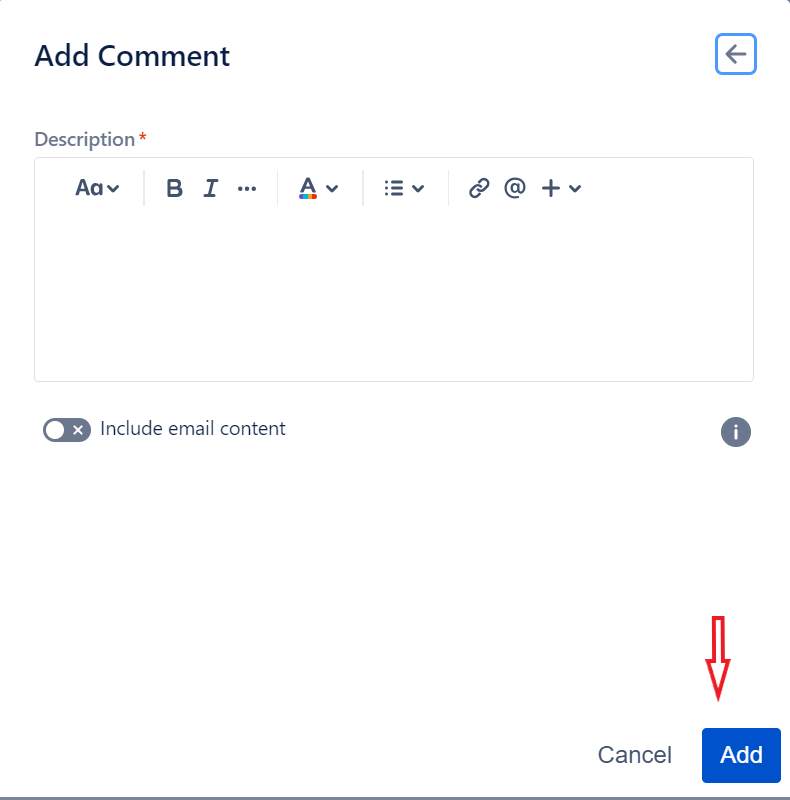
- You have now successfully added a comment
|
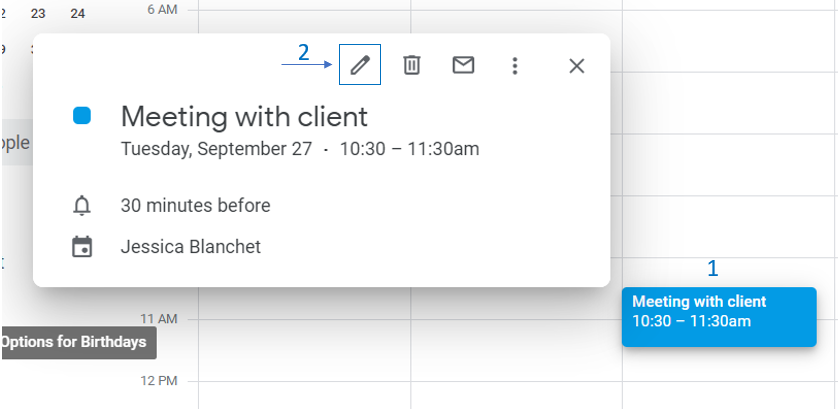
- Go to your Google Calendar
- Select an event and click to edit it
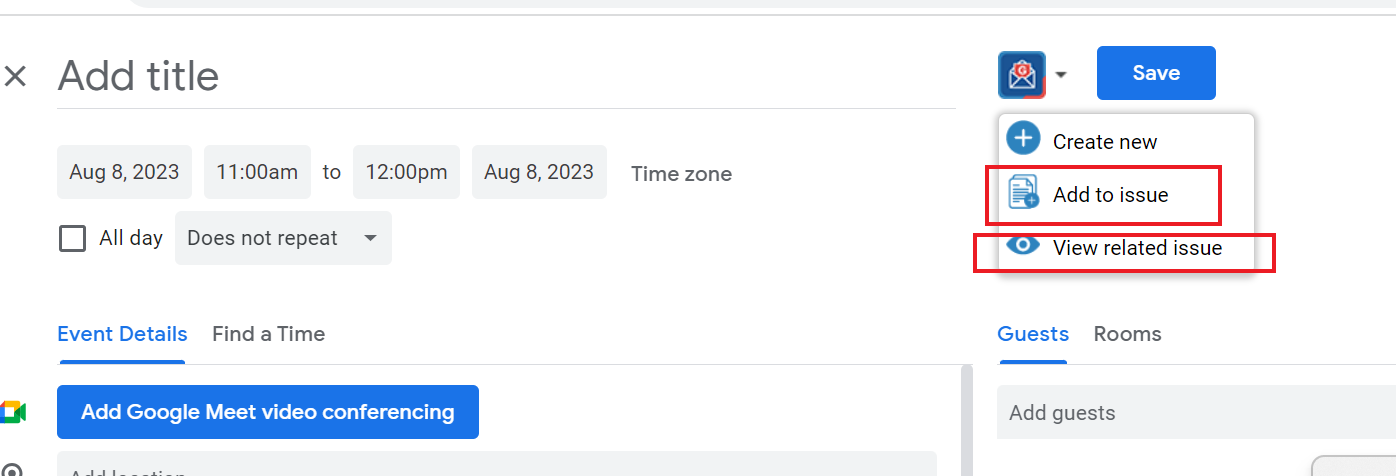
 - Open the GTJ Chrome Extension
- Select Add to issue or view related issues
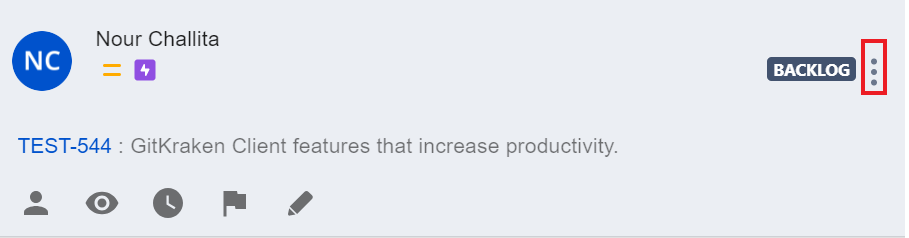
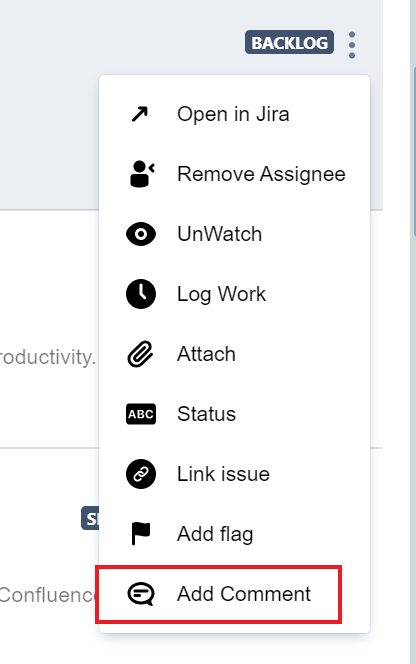
- click on Add comment option.
| If you didn't find your desired issue in the table, you can follow this link and check how to search for an issue there. |
- Edit the comment
- Click on the Add button when you're done
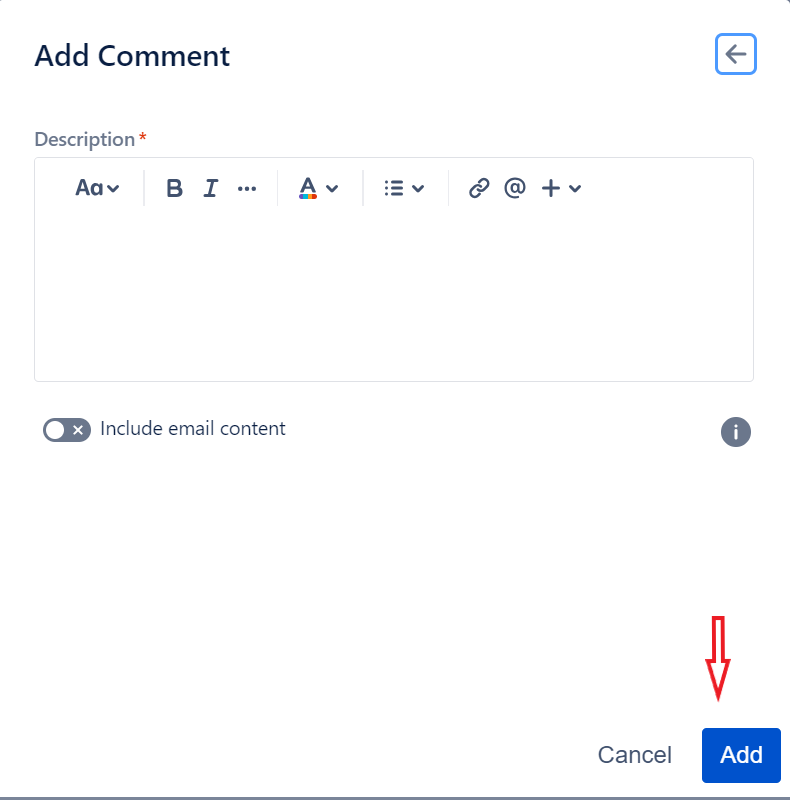 - You have now successfully added a comment and attachments!
|
If you follow these steps you'll be able to add comments to a Jira issue successfully, and you'll be ready to explore more features! |
