Overview
Quick Steps
Step # | Action |
|---|---|
| 1 | Go to your Gmail and select the desired email |
| 2 | Go to the GTJ add-on |
| 3 | Select Create new Issue, or Add Issue Comment |
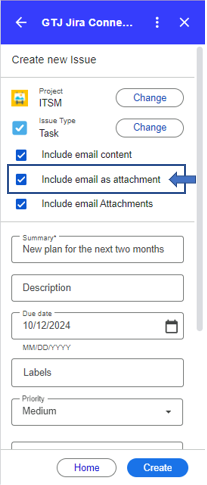
| 6 | Check the checkbox named 'Include email as attachment' |
| 7 | Click on Create |
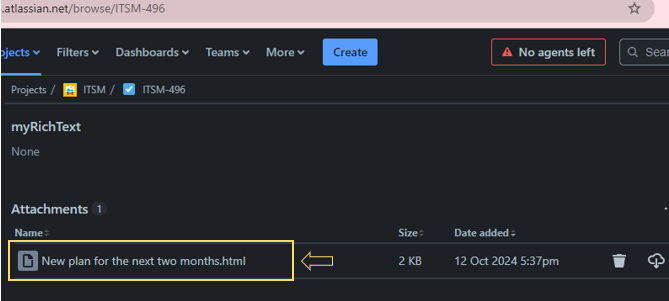
| 8 | Go to the created ticket, and you'll find the email added as an attachment |
Detailed Steps:
- Go to the create screen for example
- Check the checkbox named 'Include email as attachment'
- Click on Create
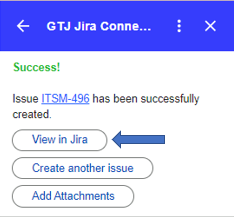
- Go to the created ticket, you can click on 'View in Jira' button
- And you'll find the email attached