
...
Suppose you received a notification, then when you press on it details screen will open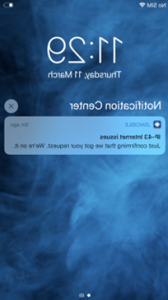
...
7- Request List Screen
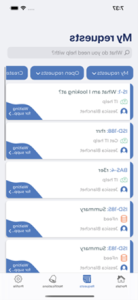
7.1 Filters and search
7.1.1 For Filters
- In order to filter Requests check below filters
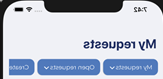
- Choose any filter and the list will update accordantly
7.1.2 For Search
- press on What do you need help with?
- And you can search the list and filter at the same time
7.2 Swipe Action
- Swipe the list to the left to view some actions
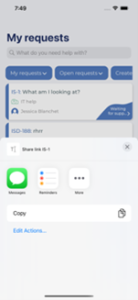
7.3 Share Link Action
- Press on Share Link
- Below share action will appear to give ability to share your Request link with other Apps
7.4 More Action
- Press on More
- Below action could appear if exists
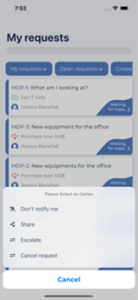
- First option allows you to enable or disable getting notifications on specific ticket
- Second option allow to share your issue with users in your organization
- Last option are Transition options
...
8. Four ways to do Transition action in the App
8.1 From Request list screen
- From Request list view
- Press on the section pointed in below image
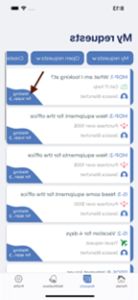
- Transition list will appear
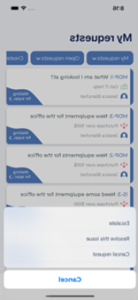
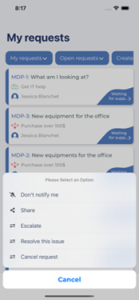
8.2 From Request list, on swipe (More action)
- Swipe the view to the left
- Press on More
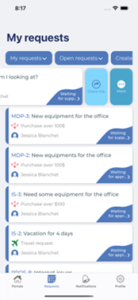
- Transition list with some actions should appear
8.3 From Details Screen
- From the vertical ellipse at the top
- In Detail screen press on vertical ellipse
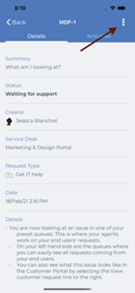
- Transition list with some Actions will appear
8.4 On pressing on status in Details section
- In Detail screen press on Status section
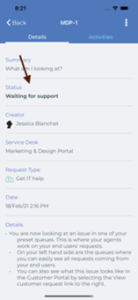
- Then transition list will appear