Feature Overview
In this guide, we will show you how to show/hide 'll walk you through the process of showing or hiding the success page upon when you create an issue creation.
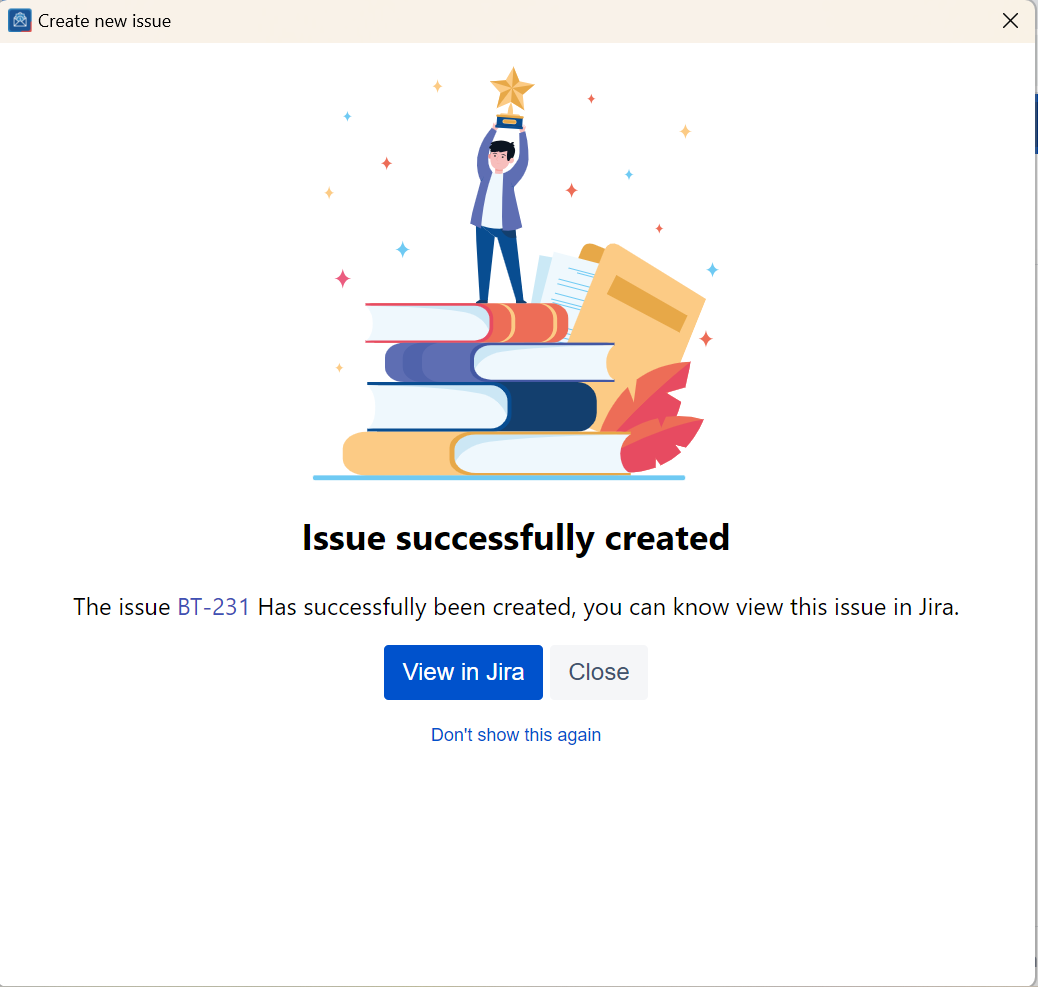
By default, the success page is remains hidden, and a popup appears instead, a pop-up window emerges when an issue is successfully created. The popup generated. This pop-up conveniently includes a hyperlinked clickable issue number, allowing you to easily open effortlessly access the issue in your web browser.
Quick Steps
...
Follow these steps
1
...
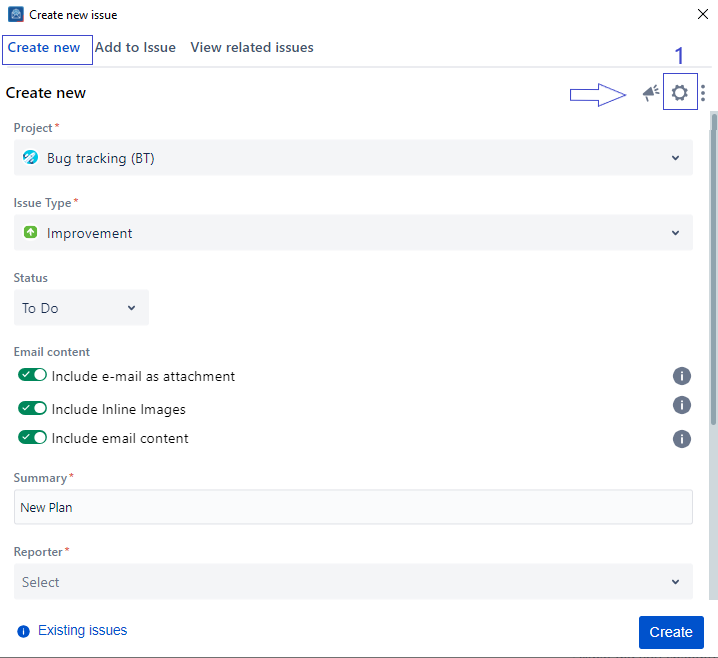
. Click on the Settings icon in the top right corner
2
...
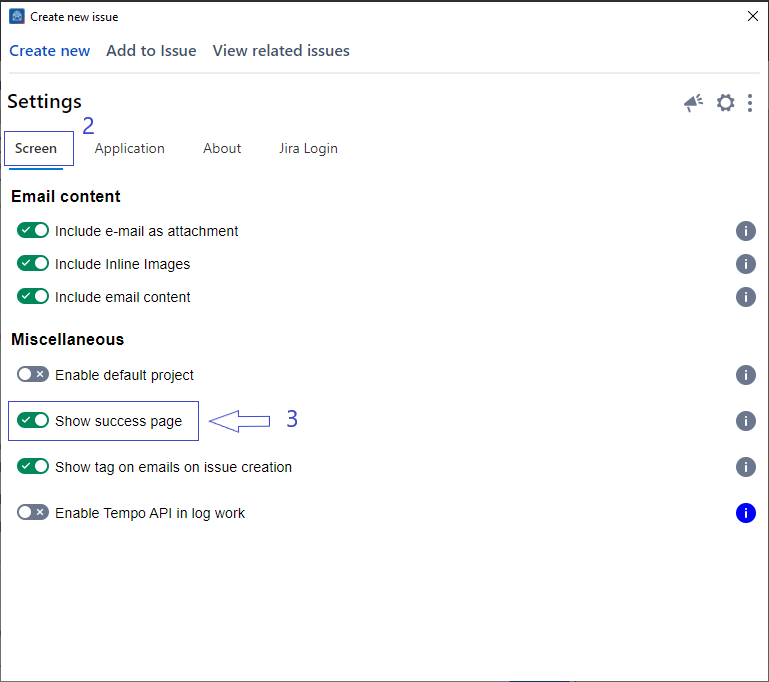
From the settings screen, select the Screen tab
. Select the Screen tab from the Settings screen
3.
...
Check/Uncheck the option Show success page
4
...
. Changes will be saved automatically
| Note |
|---|
| Settings These settings are savedstored for your account and automatically applied every timewhenever you launchopen the app. |
...
| Content by Label | ||||||||
|---|---|---|---|---|---|---|---|---|
|