Learn how to configure a Telegram bot to use with Telegram to Jira Connector.
| Info |
|---|
| The steps can be followed using either Telegram's mobile version or desktop version. |
You can follow this video to help you see the steps in action.
| Widget Connector | ||
|---|---|---|
|
Follow these steps:
1. Go to Telegram.
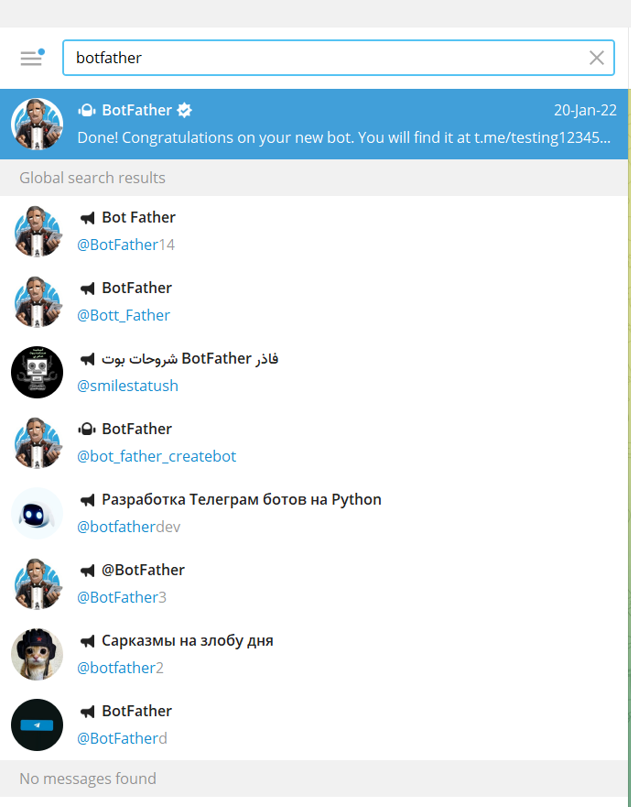
2. Search for BotFather, ensure it's the verified account.
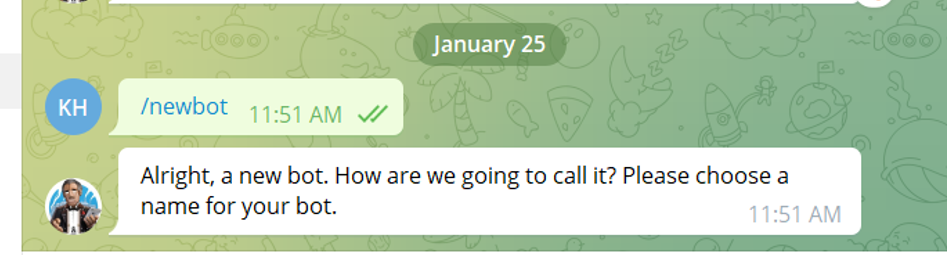
3. Initiate a chat with the bot by typing in the command (/newbot)
4. Choose a name for your bot
| Info |
|---|
| This is not the name the users will be searching for, it's the name that will appear with |
1- Search for the BotFather (the verified account)
2- Initiate the chat with the bot and enter the following command (/newbot):
...
| the bot (example: Infosysta support). |
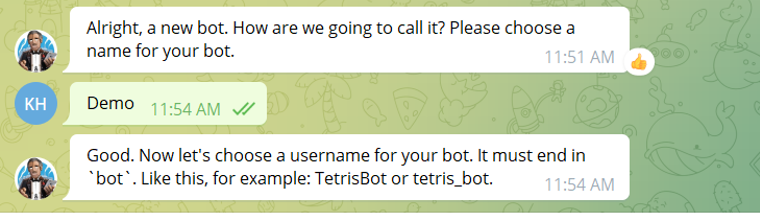 4- Choose the
5. Create a username for
...
the bot, ending in 'bot'
| Info |
|---|
| It has to end |
...
| in " bot" or "_bot". |
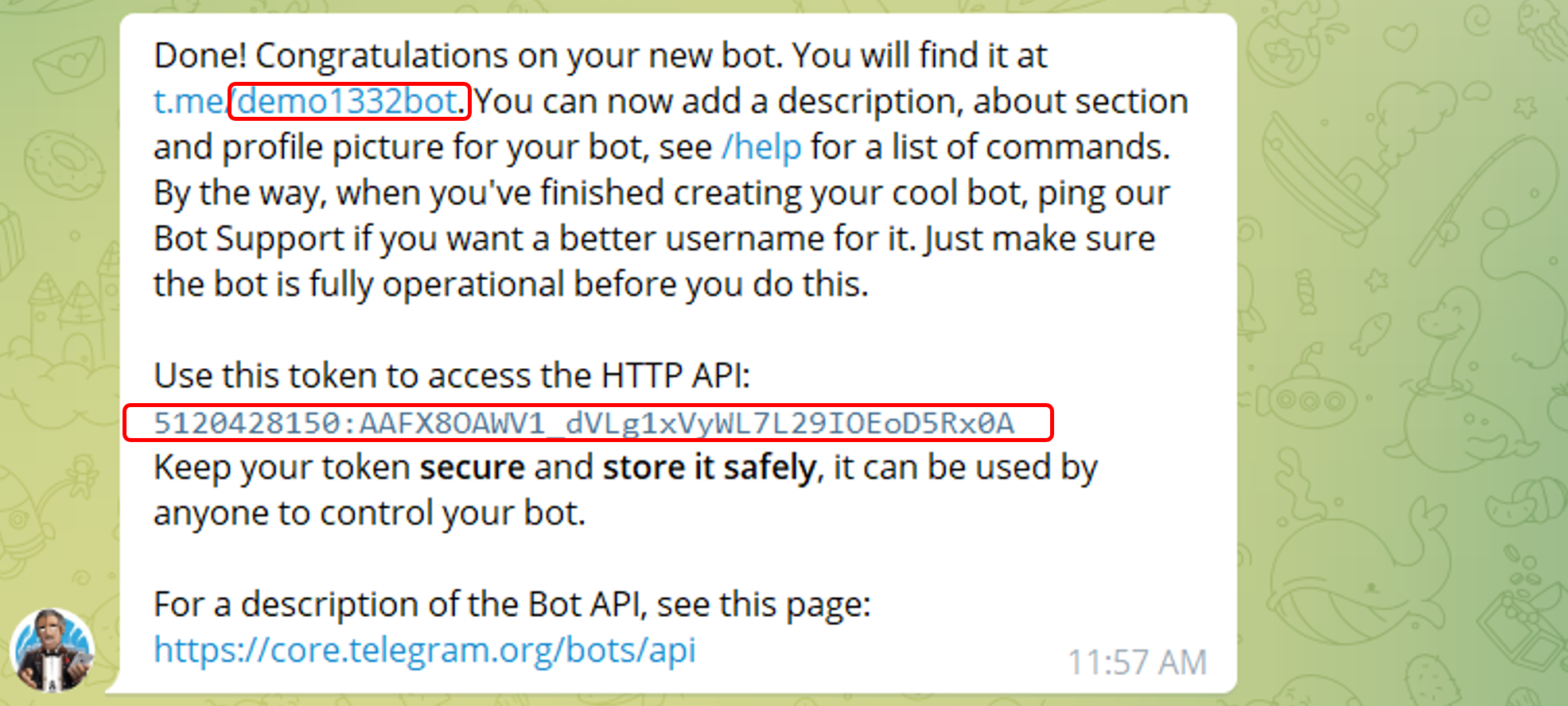
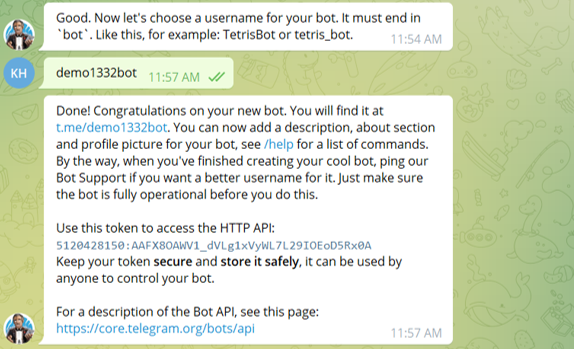 5- You Now have the needed Token and the username to continue with your bot registration
| Info |
|---|
| Please take note of them as they will be essential in using setting your bot up with Telegram to Jira Connector. |
...
Related articles
| Content by Label | ||||||||||||||||||
|---|---|---|---|---|---|---|---|---|---|---|---|---|---|---|---|---|---|---|
|
...