To manage the labels of an attachment, just click on any label assigned to the attachment or on the default gray label and this will direct you to edit the labels.
By default, you get the latest 2 labels created by you as options after opening the app.
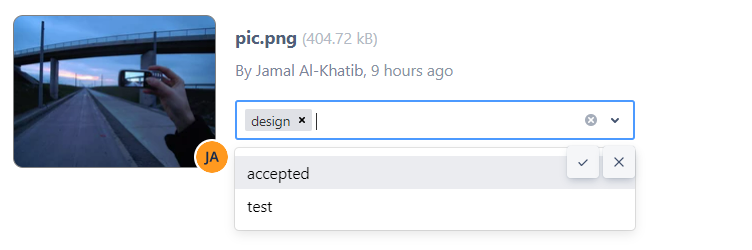
To search for labels just start typing
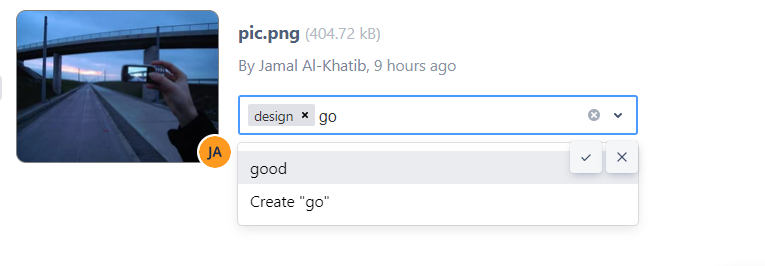
To create a new label, type its name and you will be given the option to create it if no label with this name already exists.

When finished editing the labels, just click on the done icon to save.

Note that you during editing the labels you can click on the cross "X" icon to cancel any changes you made, and you will get back to the old state of labels