1- How to Login
1.1 Basic Login
1.1.1 Server or Data Center Login
Open the App
In Enter JIRA URL Field enter your Server URL (ex:infosysta.com)
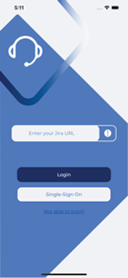
After that press login button. Login view will appear
Enter your Username and Password
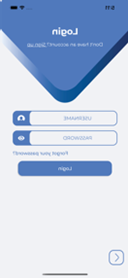
1.1.2 Cloud Login
Open the App
In Enter JIRA URL Field enter your Cloud URL (ex: infosysta-add.atlassian.net)
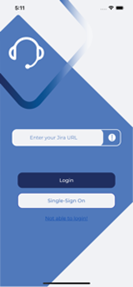
After that press login button. Login view will appear
Enter your Email and press Next
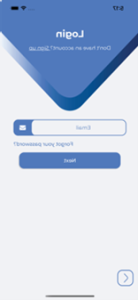
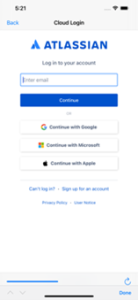
If you are Admin then you will be redirect to WebView to Login
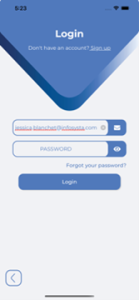
Else if you are Customer then Password field will Appear. Enter your Password and press Login
1.2 SSO Login
- Open the App
- In Enter JIRA URL Field enter your URL that you use in Web. The URL should start with HTTP/HTTPS (ex: https://css.infosysta.com).
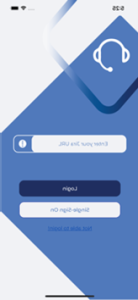
- Press Single-Sign-On Button, you will be redirected to WebView to Login
2- Portal Page
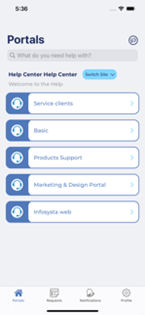
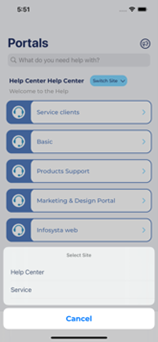
2.1 Switch sites in case of Refined Theme
If you have Refined theme for Jira Add-on and you have sites then below how will display so you can switch between them
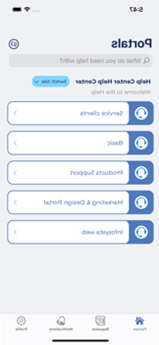
2.2 View Announcements
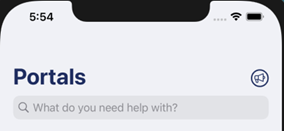
Below how Announcements added in Help center will appear in header of Portal screen