Feature Overview
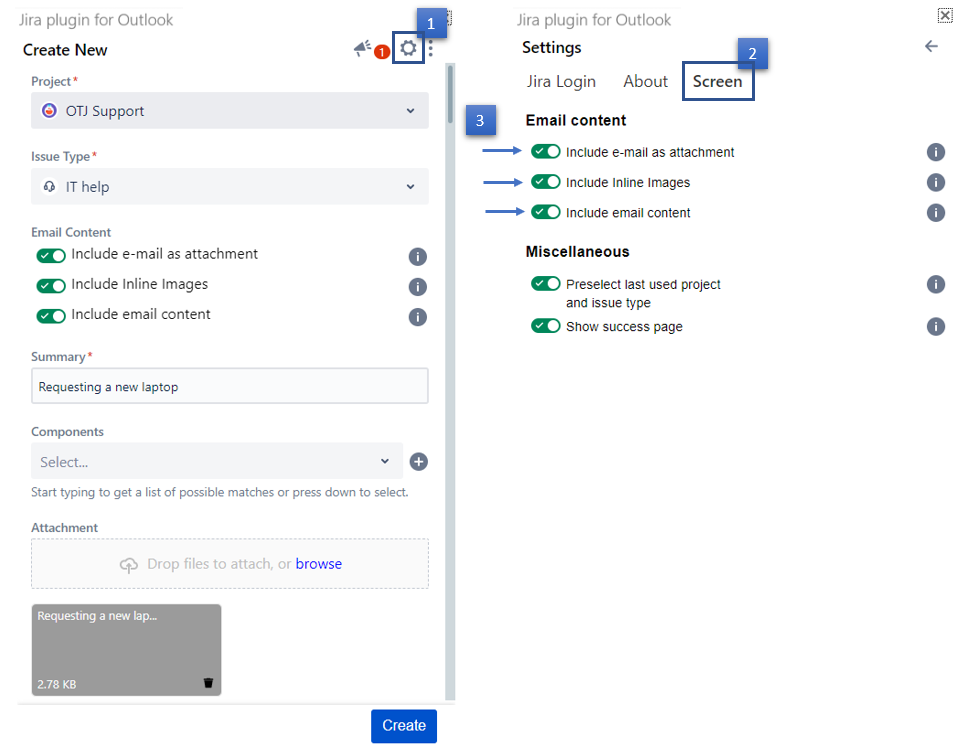
You can configure which information from an email to include in the issue from the 'settings' page.
Quick Steps
| Step # | Action |
|---|---|
| 1 | Click on the Settings icon in the top right corner |
| 2 | From the settings screen, select the Screen tab |
| 3 | The Email content section offers three configuration options that you can check/uncheck |
| 4 | Changes are saved automatically |
Related Content
-
How to Connect to Microsoft Graph for better Attachments and Inline Images rendering in Jira (Microsoft Outlook for Jira)
-
How to Add Email Automation Rules to Set Default Project and Issue Type (Microsoft Outlook for Jira)
-
Core - How to Show/Hide the Success Page on Issue Creation (Microsoft Outlook for Jira)
-
How to Create New Jira Issues from 'Microsoft Outlook for Jira' (Microsoft Outlook for Jira)
-
How to Create a New Fix Version (Microsoft Outlook for Jira)
-
How to Link Issues from the Create Screen (Microsoft Outlook for Jira)
-
How to Show/Hide Fields (Microsoft Outlook for Jira)
-
How to Log Work from the Create Screen (Microsoft Outlook for Jira)
-
How to Create a New Component (Microsoft Outlook for Jira)
-
How to Show/Hide the Success Page on Issue Creation (Microsoft Outlook for Jira)
-
How to Create a Subtask (Microsoft Outlook for Jira)