Feature Overview
You can edit your Jira issues directly from your Gmail or Calendar.
Quick Steps
Step # | Action |
|---|---|
| 1 | Go to your Gmail or Calendar |
| 2 | Select the email, or edit the calendar event you wish to create a ticket from |
| 3 | Go to GTJ Chrome extension and select Edit from e-mail or Edit from Calendar |
| 4 | Fill in the requested fields such as assignee, reporter, flag, environment, labels |
| 5 | Select from the checkboxes the e-mail or event content that you need to include as comment, description, attachments |
| 6 | To upload attachments you can drop or browse files to attach |
| 7 | Click on Link issue or Log work to expand |
| 8 | Click on Create |
- Select an e-mail → open GTJ Chrome Extension → select 'Edit from e-mail'

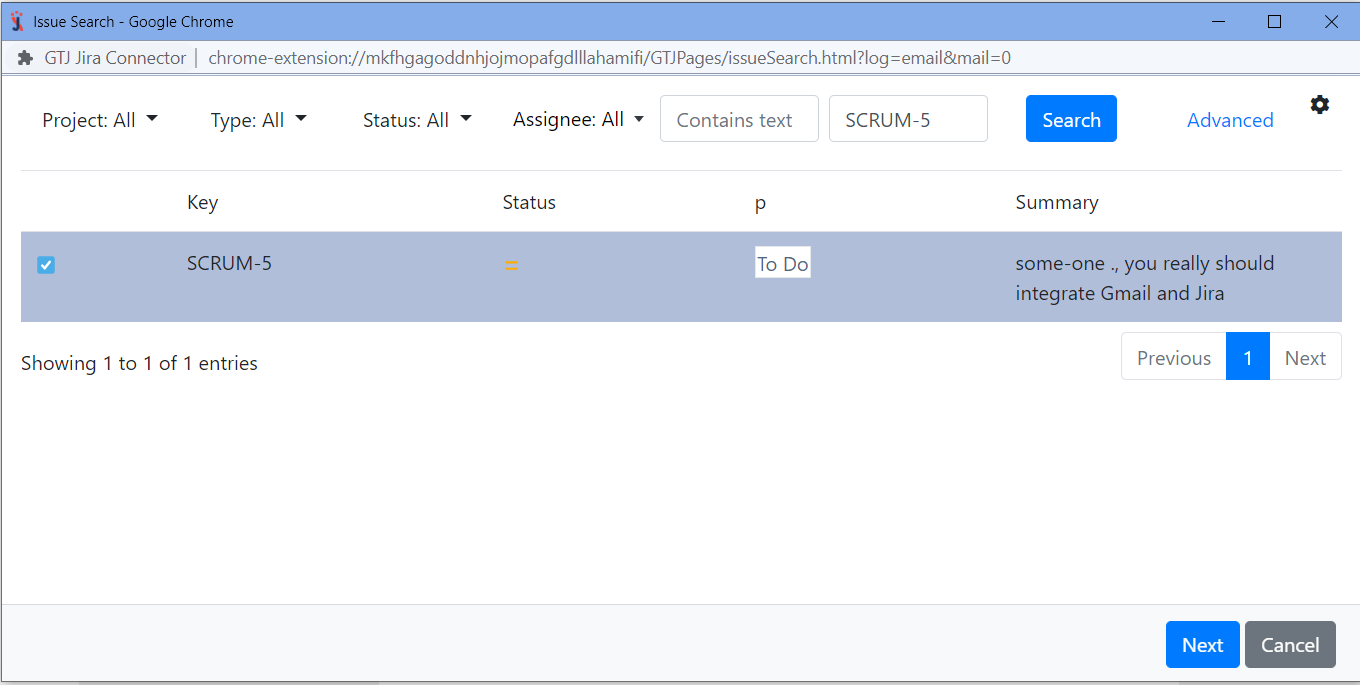
Search, and select your issue, then click next
If you didn't found your desired issue in the table, you can follow this link and check how to search for an issue
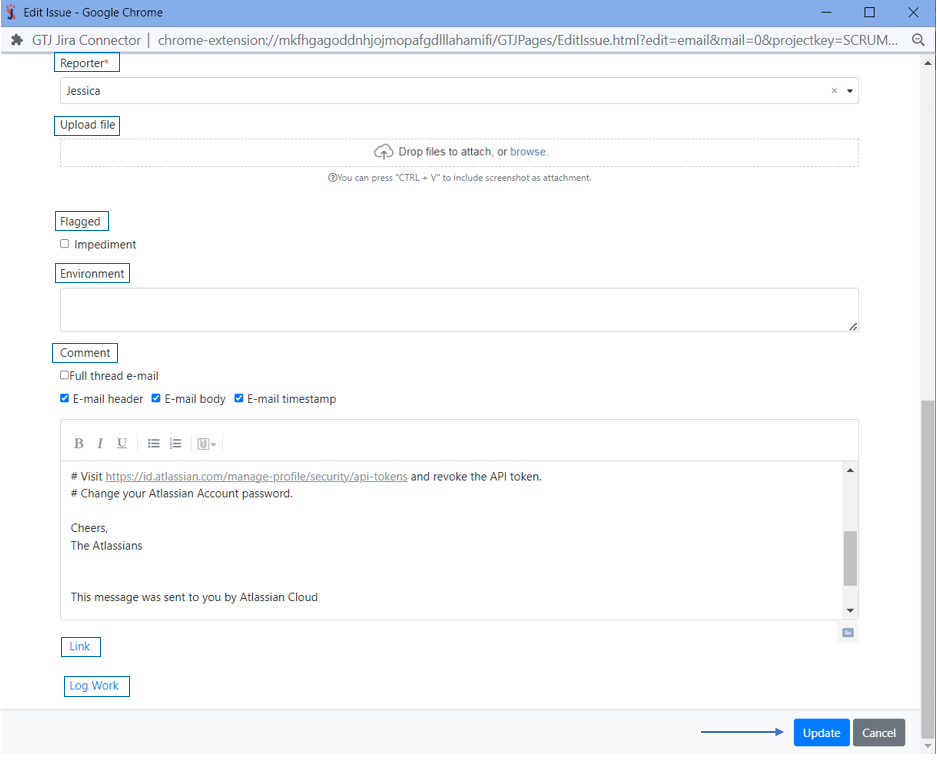
- By editing your issue you can:
- Edit the 'summary', the 'description', 'assignee', 'labels', also you can include the 'email attachments', 'inline images', or include the 'email as attachment'
- All you need to do is to edit the fields you want and select from the checkboxes the options you'd like to include

- You can also 'edit the reporter', 'upload files', 'add a flag', 'environment', 'add a comment', 'Link this issue', and 'log work'
- Once done click on 'Update' button
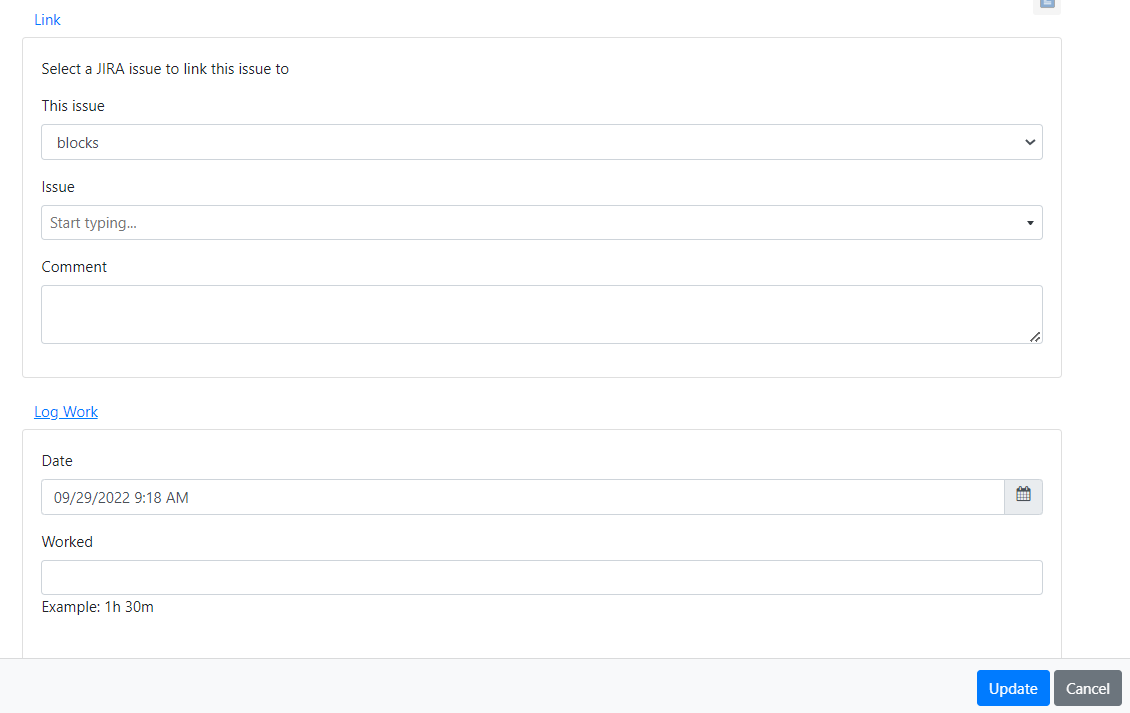
- You can 'Link this issue', and 'log work', by clicking on link or log work button
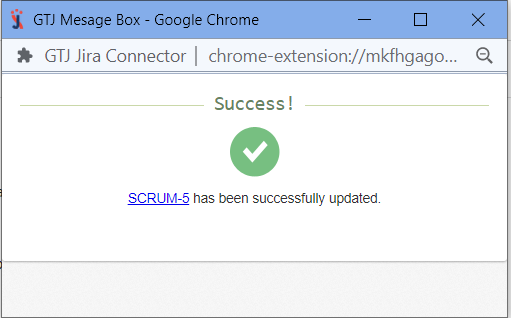
- You have edited your issue successfully!
- Go to your Google Calendar, select an event and click to edit it
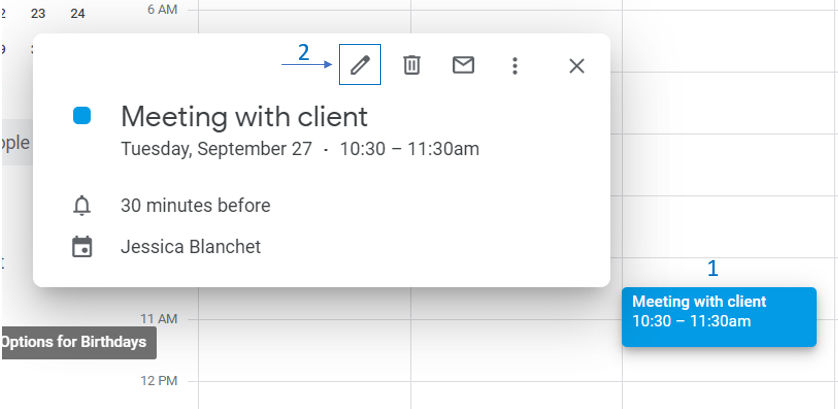
- Open GTJ Chrome Extension → select 'Edit from Calendar'

Search, and select your issue, then click next
If you didn't found your desired issue in the table, you can follow this link and check how to search for an issue
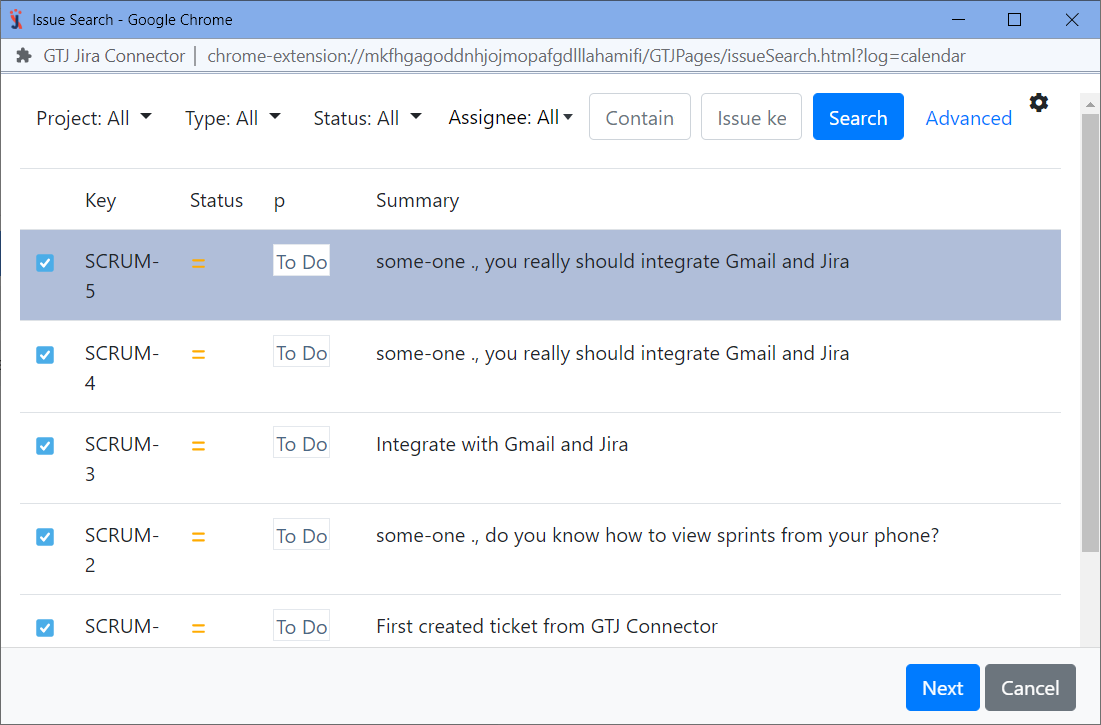
- By editing your issue you can:
- Edit the 'summary', the 'description', 'assignee', 'labels', 'reporter', and 'upload files'

- You can also 'add a flag', 'environment', 'add a comment', 'Link this issue', and 'log work'
- To 'Link this issue', and 'log work', just click on 'link' or 'log work' button
- Once done click on 'Update' button
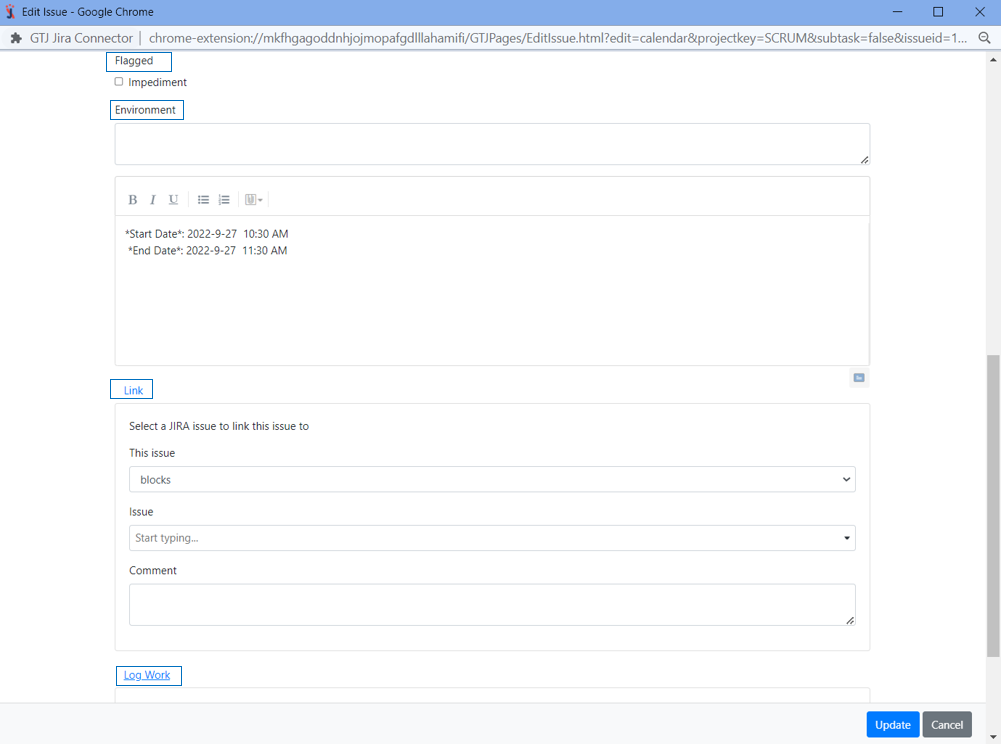
- You have edited your issue successfully!