Feature Overview
This guide will show you how to create a new fix version directly from the Create screen.
Follow these steps
1. Head to the Create screen
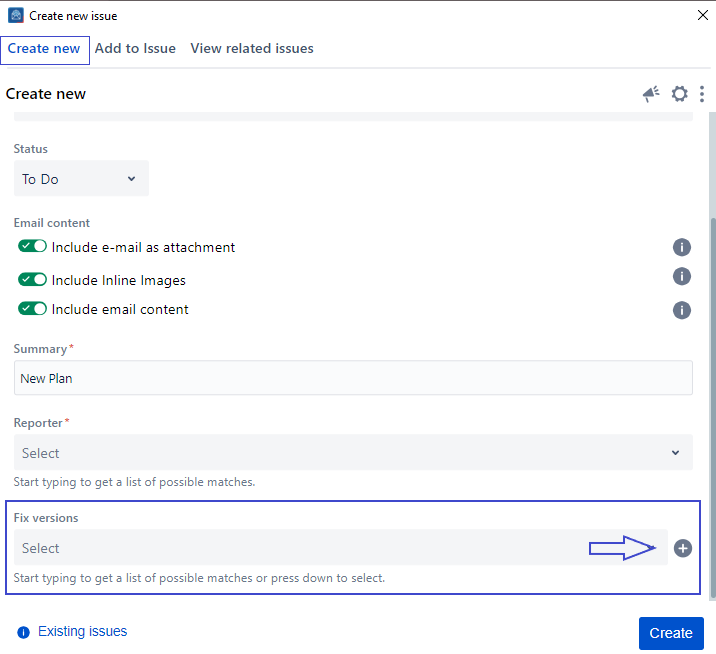
2. Scroll to the Fix version field
3. Click on the '+' button
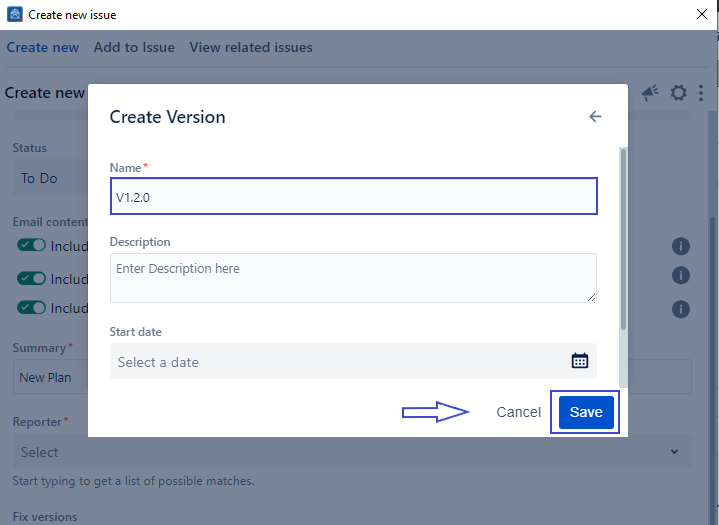
4. Enter a new Version Name
5. Fill in other fields
6. Click on save
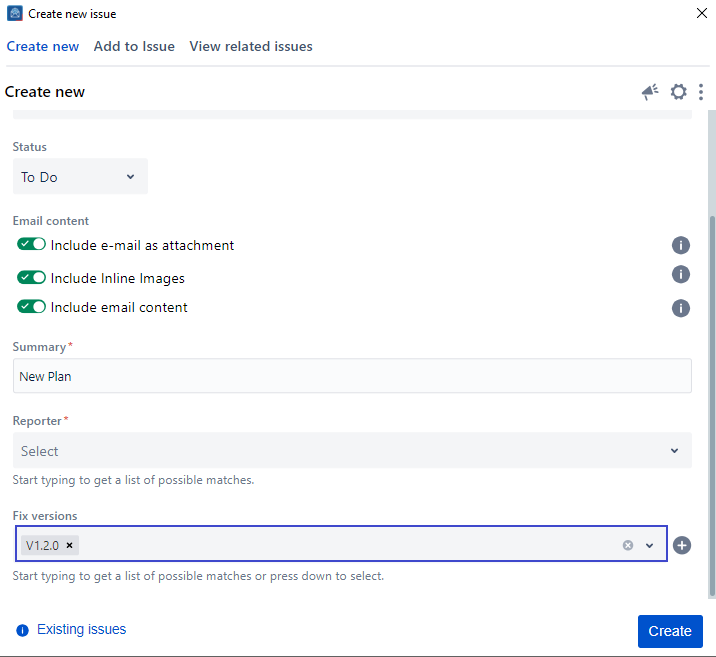
7. Once saved, the fix version created will be selected in the Create screen
You need to have the correct Jira permissions to be able to create a new fix version.
If you can't find the field you are looking for, you might need to show/hide it from the Configure field option. Learn more here.
Related Content
-
Core - How to Create a New Component (Microsoft Outlook for Jira)
-
Core - How to Show/Hide Fields (Microsoft Outlook for Jira)
-
Core - How to Link Issues from the Create Screen (Microsoft Outlook for Jira)
-
Core - How to Create a Subtask (Microsoft Outlook for Jira)
-
Core - How to Log Work from the Create Screen (Microsoft Outlook for Jira)
-
Core - How to Create New Jira Issues from Microsoft Outlook for Jira (Microsoft Outlook for Jira)
-
Core - How to Create a New Customer in a Service Desk Project (Microsoft Outlook for Jira)
-
Core - How to Preview Attachments (Microsoft Outlook for Jira)
-
Core - How to Rename Attachments (Microsoft Outlook for Jira)
-
Core - How to Mention User in description (Microsoft Outlook for Jira)
-
Core - How to View Screen Tabs (Microsoft Outlook for Jira)
-
Core - How to Enable Tempo API to Log Work (Microsoft Outlook for Jira)