Overview
Learn how to seamlessly add email content like subject and body directly to your Jira tickets, whether creating a new ticket or adding a comment.
This feature simplifies your workflow by filling the ticket summary by the email subject, and the ticket description by your email body.
That's not all, you can also attach all the email attachments to Jira tickets!
Quick Steps
Step # | Action |
|---|---|
| 1 | Go to your Gmail and select the desired email |
| 2 | Go to the GTJ add-on |
| 3 | Select Create new Issue, or Add Issue Comment |
| 6 | Check the checkboxes
|
| 7 | Click on Create |
| 8 | Go to the created ticket, and check the data |
Detailed Steps:
- Go to the create screen for example
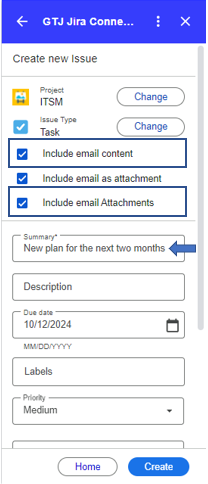
- Check the checkboxes 'Include email content' & Include email attachments
- When you select 'Include email content' you'll see the summary field filled by the email subject directly
- Click on Create
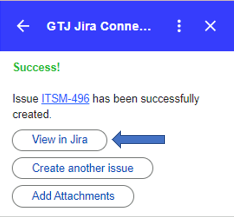
- Go to the created ticket, you can click on 'View in Jira' button
- And check the data:
- Ticket summary is filled by the email subject
- Ticket description is filled by the email body
- if the email contains attachments you'll see all attachments attached to the Jira ticket