Overview
Learn how to search and update a Jira issue.
Quick Steps
| Step # | Action |
|---|---|
| 1 | Go to your Gmail account, or Calendar |
| 2 | Open the GTJ Jira Connector add-on, after opening an email, or selecting an event |
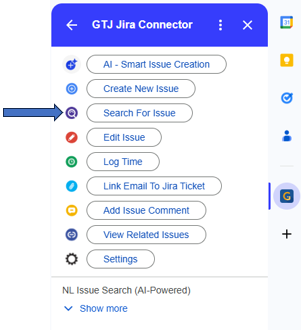
| 3 | Click on Search for issue option |
| 4 | Search for an issue and select the desired one You have three ways to search:
|
| 5 | Once selected, the edit page is opened, you can edit the fields you want |
| 6 | Once done, click on Edit button |
- Click on 'Search for issue' option from the home page menu.
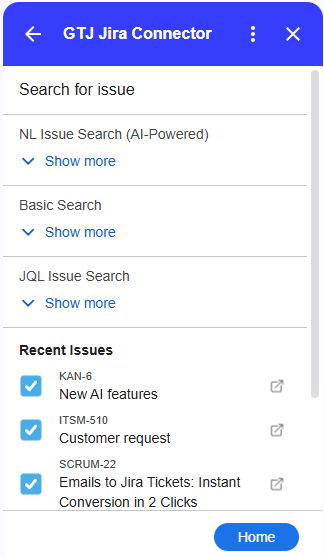
- Select an issue from the recent issues list, or choose the desired way to Search for an issue, & select one
- Expand the basic search section
- fill in the desired search filters
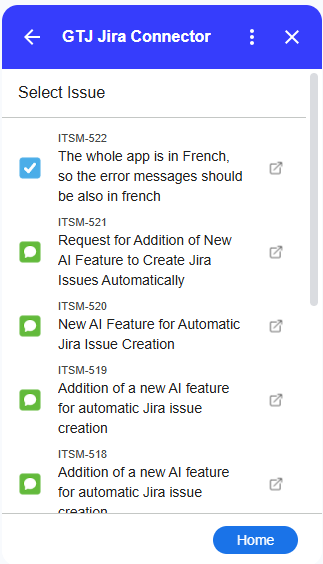
- then click on Search button, and the list of matching issues will be shown
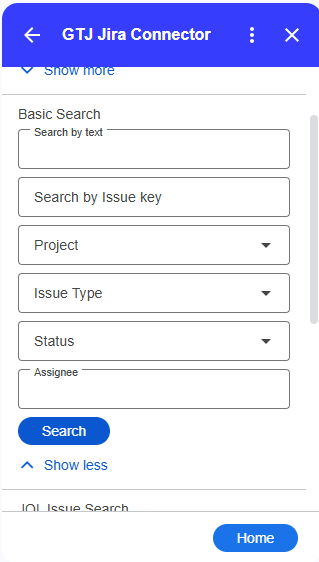
- After Selecting your desired issue, you'll be redirected to the edit issue screen
- Edit the fields you want
- Once done Click on the Edit button, or click on 'Cancel' to discard the changes.
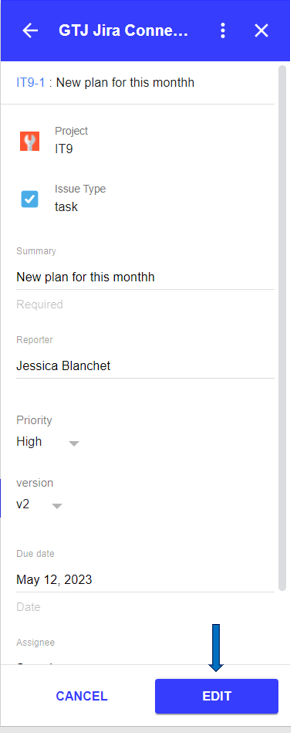
- You have successfully updated Jira issue fields!

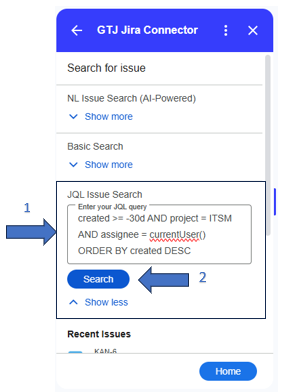
- Expand the JQL Search section
- Fill in the input with your JQL query
- Then click on the Search button
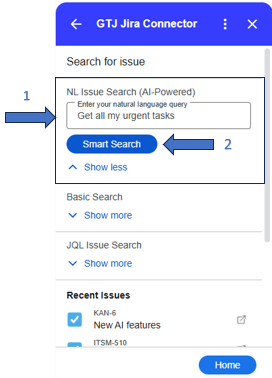
- Using natural language, Fill in the NL text input with any text about the issue you're searching for
- Click on the Smart Search button to allow AI generating the JQL query and search for your issues
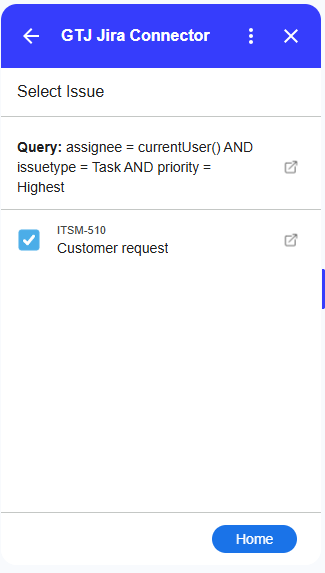
- Once done, your matched issues will be shown